Project Plan 365 for Mac allows you to open, view, create, edit, and save Microsoft Project MPP files directly on macOS. Work with projects stored on your Mac or in supported cloud services, review schedules in familiar project views, and print or export project information to PDF.
What is an MPP file?
An MPP file is a Microsoft Project file that stores a project schedule. It can contain tasks, dates, durations, dependencies, milestones, resources, costs, and progress information.
How can I work with MPP files on Mac?
Use Project Plan 365 for Mac to open, view, create, edit, and save MPP files. The application supports the native Microsoft Project file format, so you do not need to convert your MPP files before opening them.
What are the benefits of using Project Plan 365 for Mac?
Project Plan 365 for Mac lets you:
- Open and save Microsoft Project MPP files.
- Review schedules using familiar project views.
- Create new plans and update existing projects.
- Open and save files on your Mac or in supported cloud services.
- Share MPP files with colleagues who use Microsoft Project.
- Print project views or save them as PDF.
Do I need Windows or Microsoft Project installed on my Mac?
No. Project Plan 365 runs directly on macOS. You do not need Windows, a Windows virtual machine, or Microsoft Project installed on your Mac.
Installation and Activation
How do I install Project Plan 365 on Mac?
Visit the Project Plan 365 Download page, select Mac, and click Download Project Plan 365.
Open the downloaded .pkg installer and follow the onscreen instructions. After installation, you can launch the application from Applications or Launchpad.
How do I activate a subscription purchased from the Project Plan 365 website on Mac?
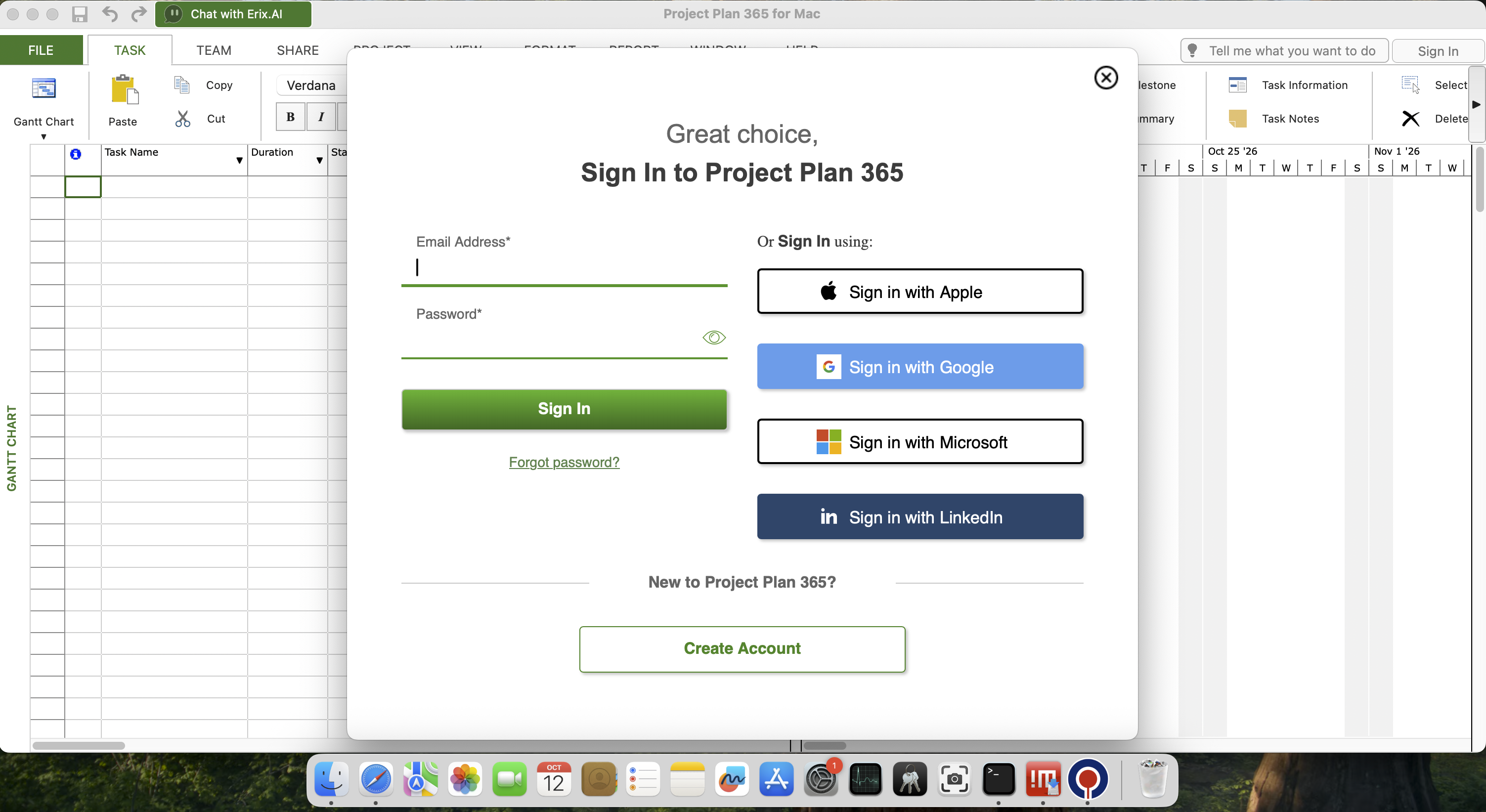
Open the Project Plan 365 application. The Sign In dialog appears automatically when you launch the app. Sign in with the Project Plan 365 account associated with your subscription to activate it.
Open MPP Files
How do I open an MPP file stored on my Mac?
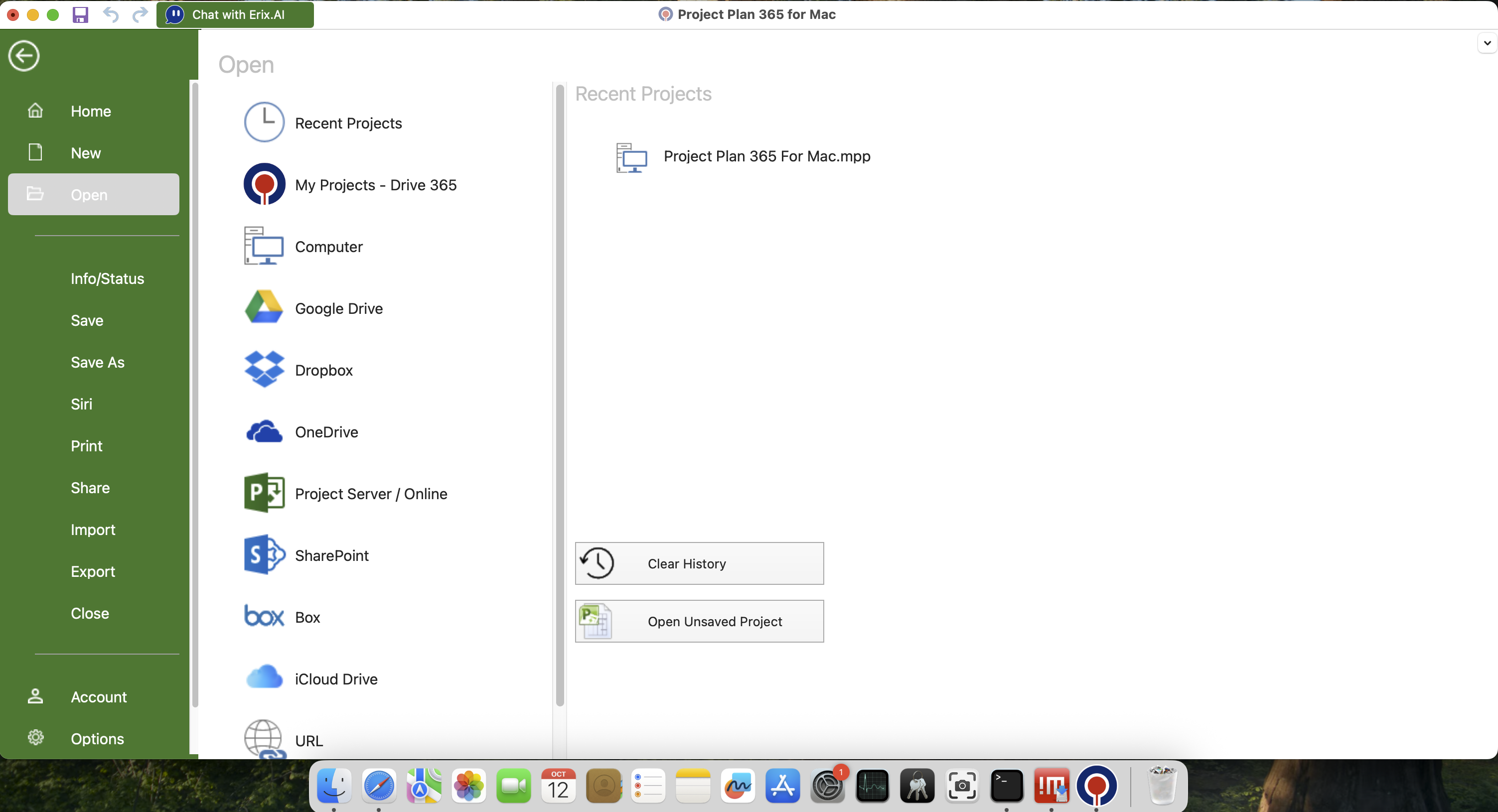
Go to File → Open → Computer, select your MPP file, and click Open.
Can I open an MPP file created in Microsoft Project on Mac?
Yes. Project Plan 365 for Mac opens Microsoft Project MPP files directly, without requiring conversion to another file format.
Can I open MPP files from cloud storage on Mac?
Yes. Go to File → Open, select the cloud location, sign in if required, and choose your project.
Supported services include Google Drive, OneDrive, Dropbox, Box, iCloud Drive, and SharePoint Online.
View Project Information
Which project views can I use on Mac?
Project Plan 365 for Mac supports multiple views for reviewing your project:
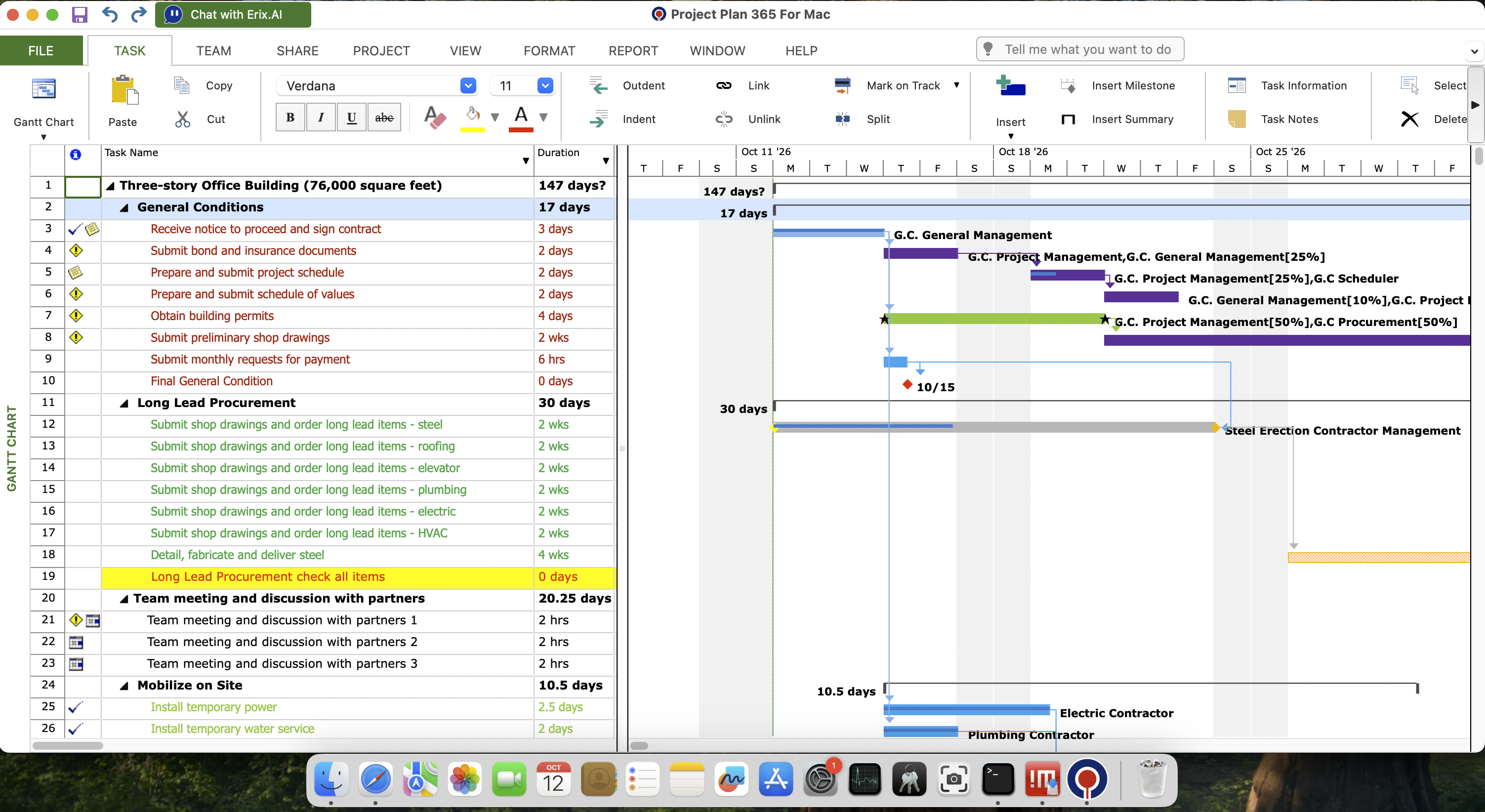
- Gantt Chart — Displays tasks and schedule dates alongside graphical task bars.
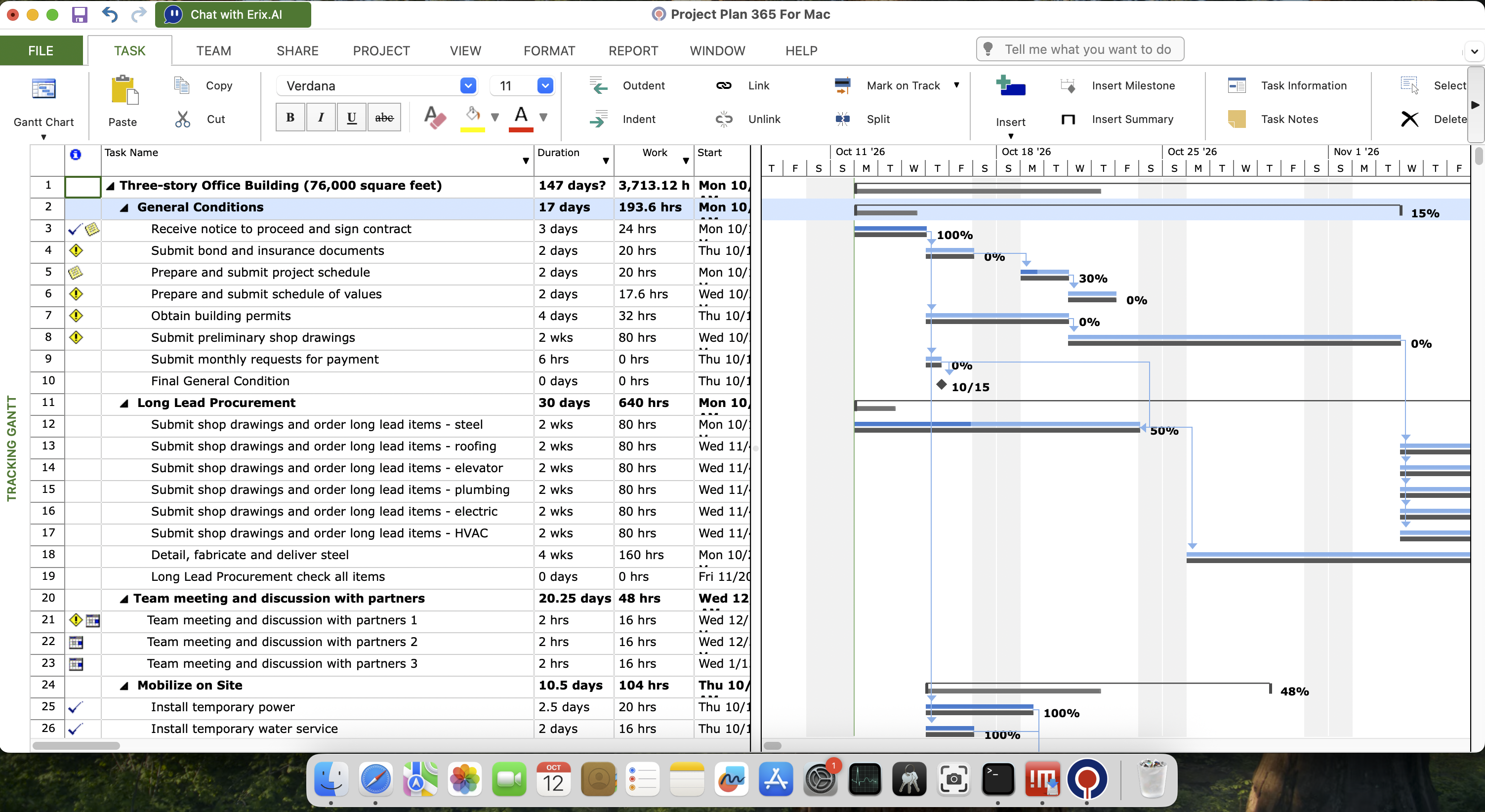
- Tracking Gantt — Compares the current schedule with the saved baseline.
- Network Diagram — Shows tasks and their dependency relationships.
- Calendar — Displays scheduled tasks in a calendar layout.
- Task Sheet — Displays task information in a spreadsheet-style view.
- Task Usage — Shows tasks, assigned resources, and work distributed over time.
- Resource Sheet — Displays resource names, types, rates, and other resource details.
- Resource Usage — Shows resources, their task assignments, and work distributed over time.
- Resource Graph — Displays resource allocation information graphically.
- Team Planner — Shows resource assignments and scheduled work.
- Timeline — Provides an overview of selected project tasks and milestones.
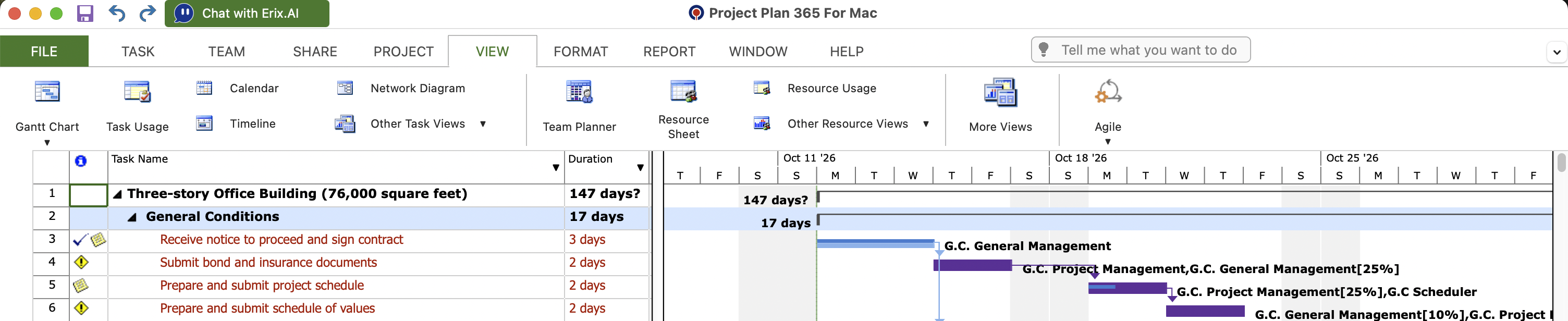
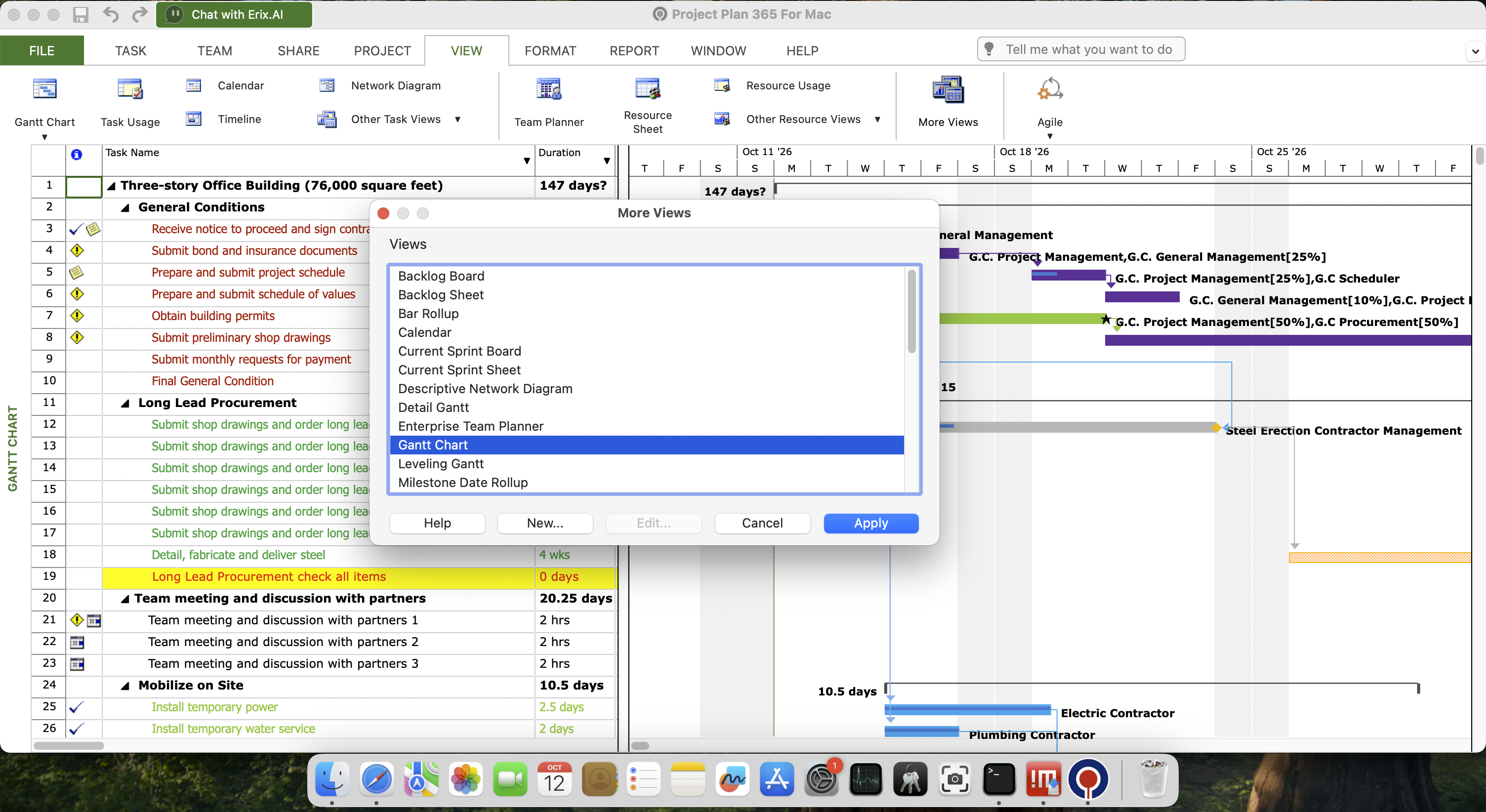
To switch views, go to the View tab and select the desired view. For additional options, select More Views.
How do I switch between project views on Mac?
Open your project and go to the View tab. Select the view you want to display, such as Gantt Chart, Resource Sheet, or Task Usage.
If the view is not listed directly in the ribbon, check More Views. If the application window is narrow, some ribbon commands may appear under the More menu.
Can I adjust how my project is displayed on Mac?
Yes. You can change the displayed columns, adjust the timescale, and use filters or sorting to focus on the information you need.
For example, you can review a detailed task schedule or display a broader overview before printing or sharing it.
Create and Edit MPP Files
Can I create and edit MPP files on Mac?
Yes. Project Plan 365 for Mac allows you to create new project schedules and update existing MPP files.
You can work with tasks, dates, durations, dependencies, resources, and progress information, then save the updated project in MPP format.
To start a new project, go to File → New → Blank Project.
Save and Share MPP Files
How do I save an MPP file on my Mac?
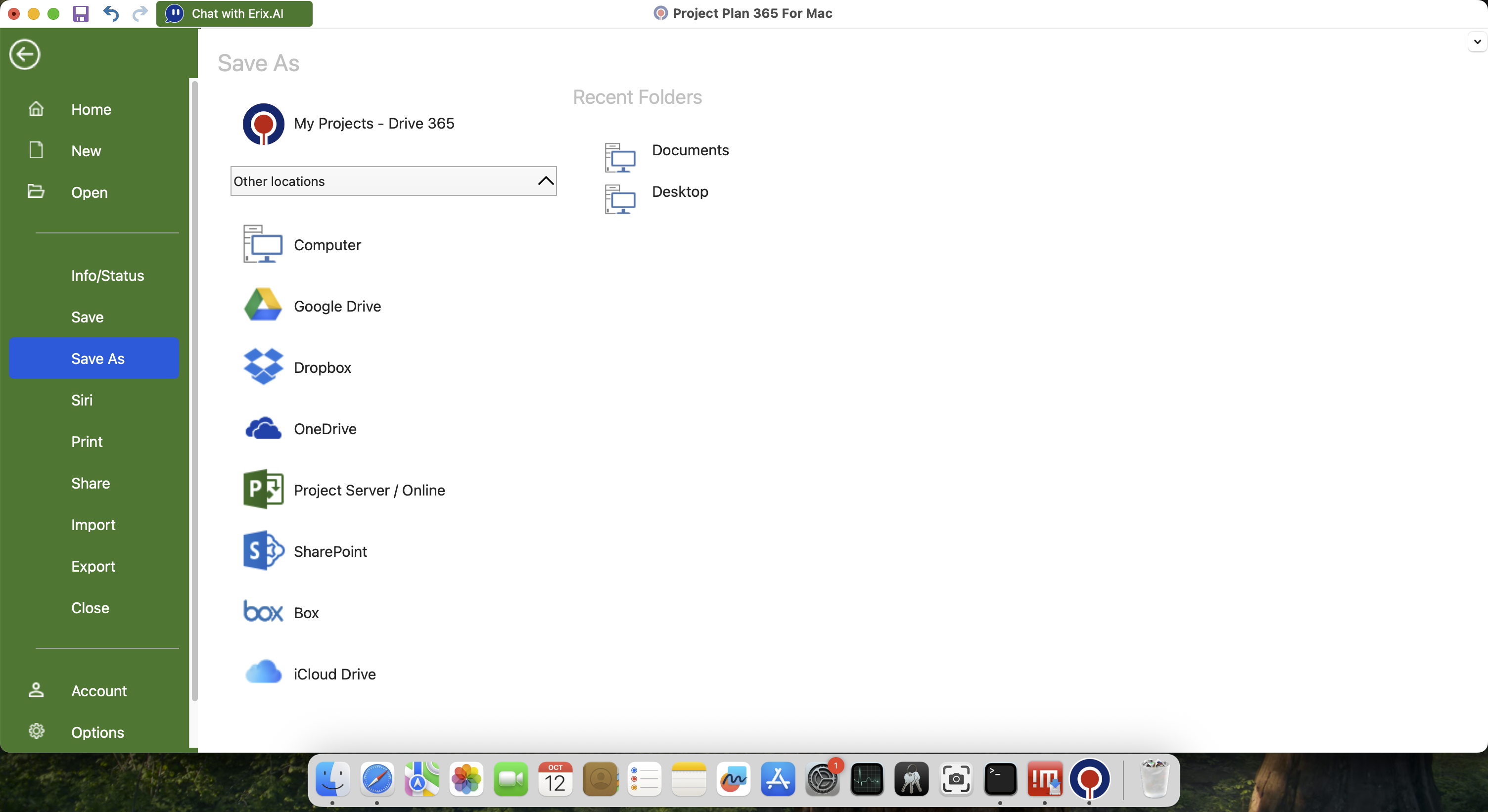
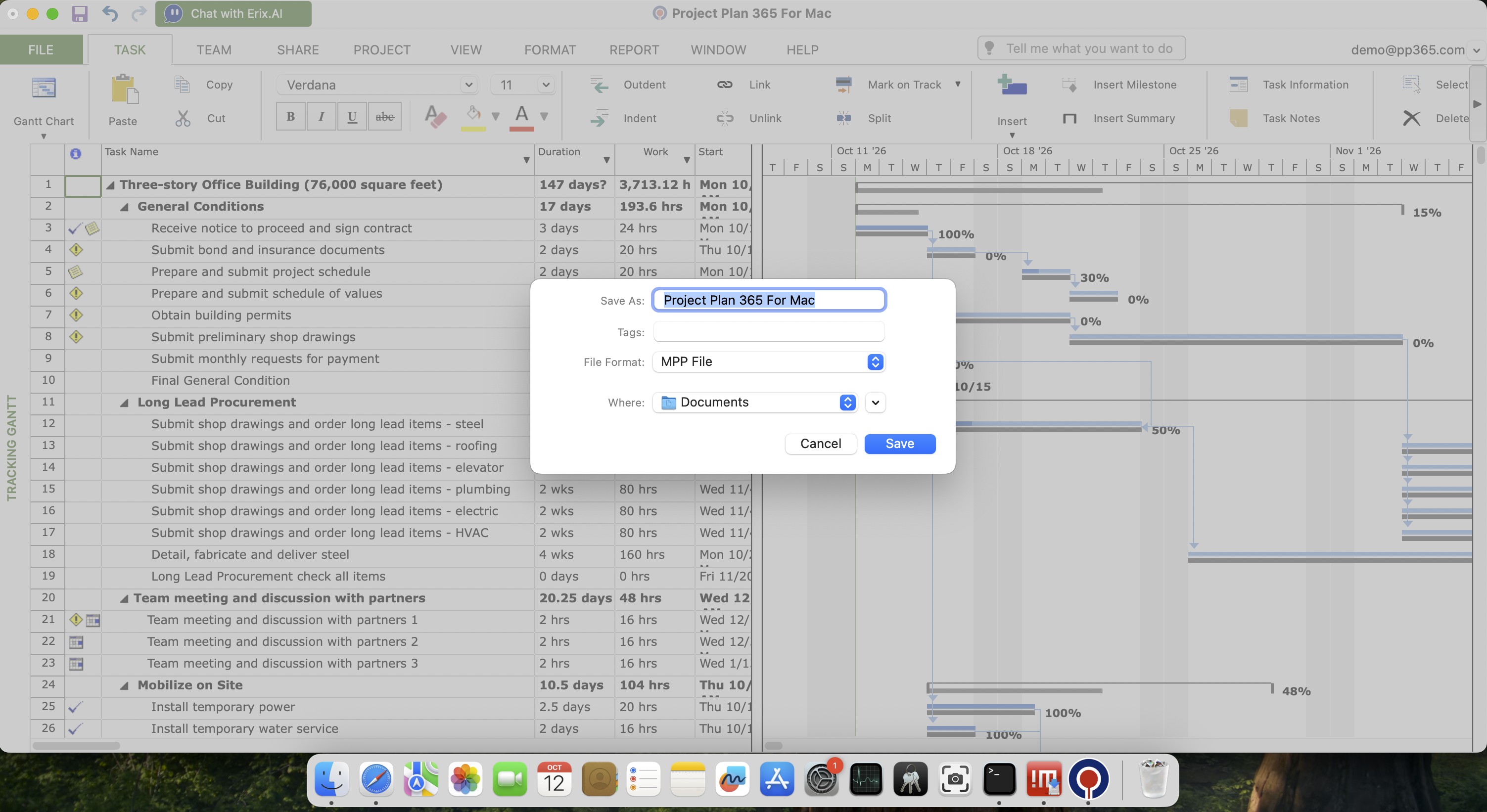
Go to File → Save As, expand Other locations, and select Computer. Choose the destination folder, enter a filename, and click Save.
Use File → Save to save subsequent changes.
How do I save a separate copy of an MPP file on Mac?
Use File → Save As and choose a different filename or destination. This lets you keep the original file and save a separate copy.
Can I save MPP files to cloud storage on Mac?
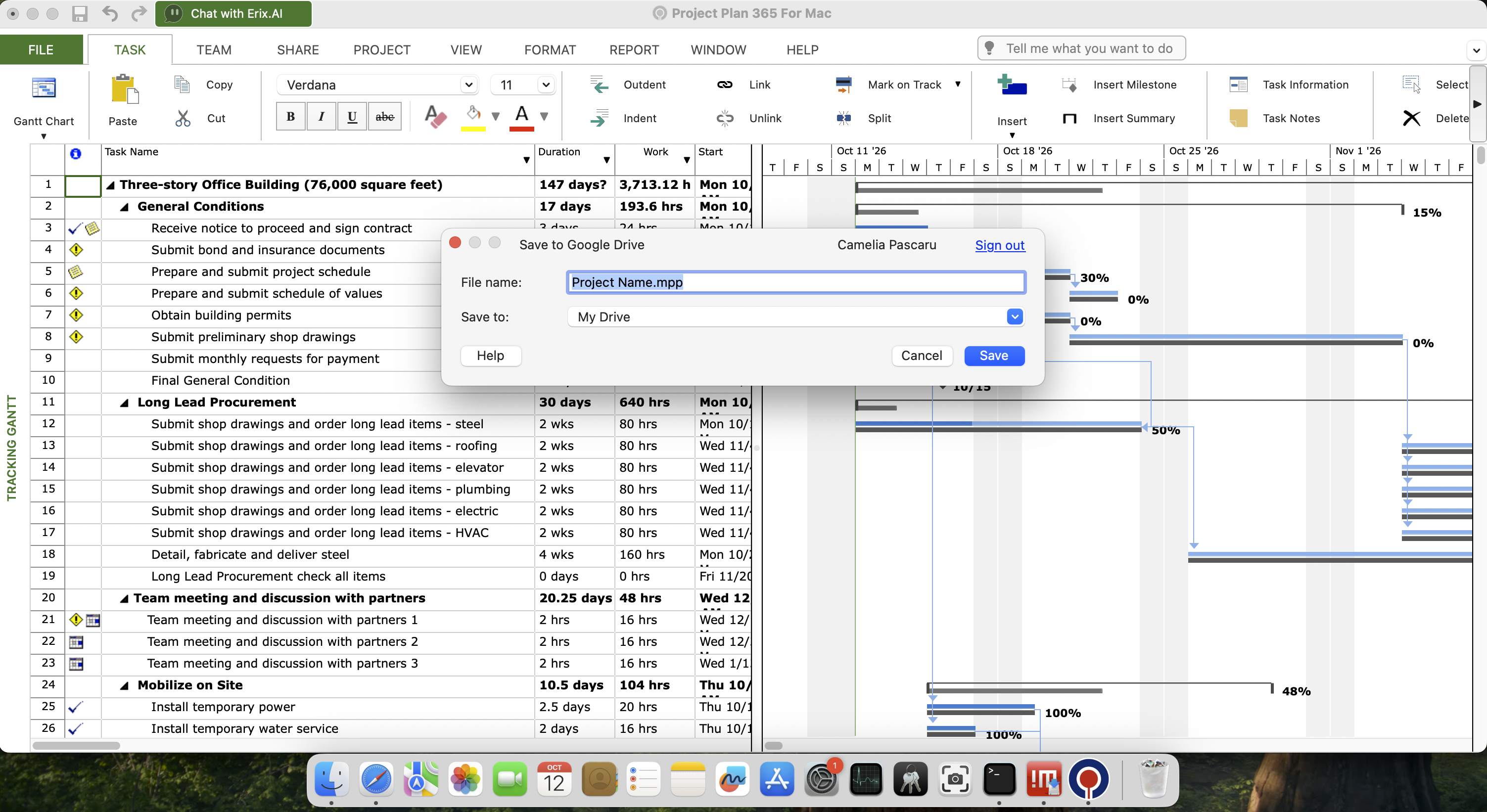
Yes. Go to File → Save As, expand Other locations, and select the cloud service you want to use. Sign in if required, choose the destination, and save your project.
Can I save an MPP file to iCloud Drive on Mac?
Yes. Go to File → Save As → Other locations → iCloud Drive, choose the destination, enter a filename, and click Save.
Can colleagues using Microsoft Project on Windows open an MPP file saved on Mac?
Yes. MPP files saved with Project Plan 365 are compatible with Microsoft Project 2010 and newer versions. Save your project in MPP format and share the file with your colleagues.
Where can I learn more about Microsoft Project compatibility on Mac?
Visit the Microsoft Project for Mac page and follow the feature comparison link to review the supported features.
Print and Export
How do I print a project view on Mac?
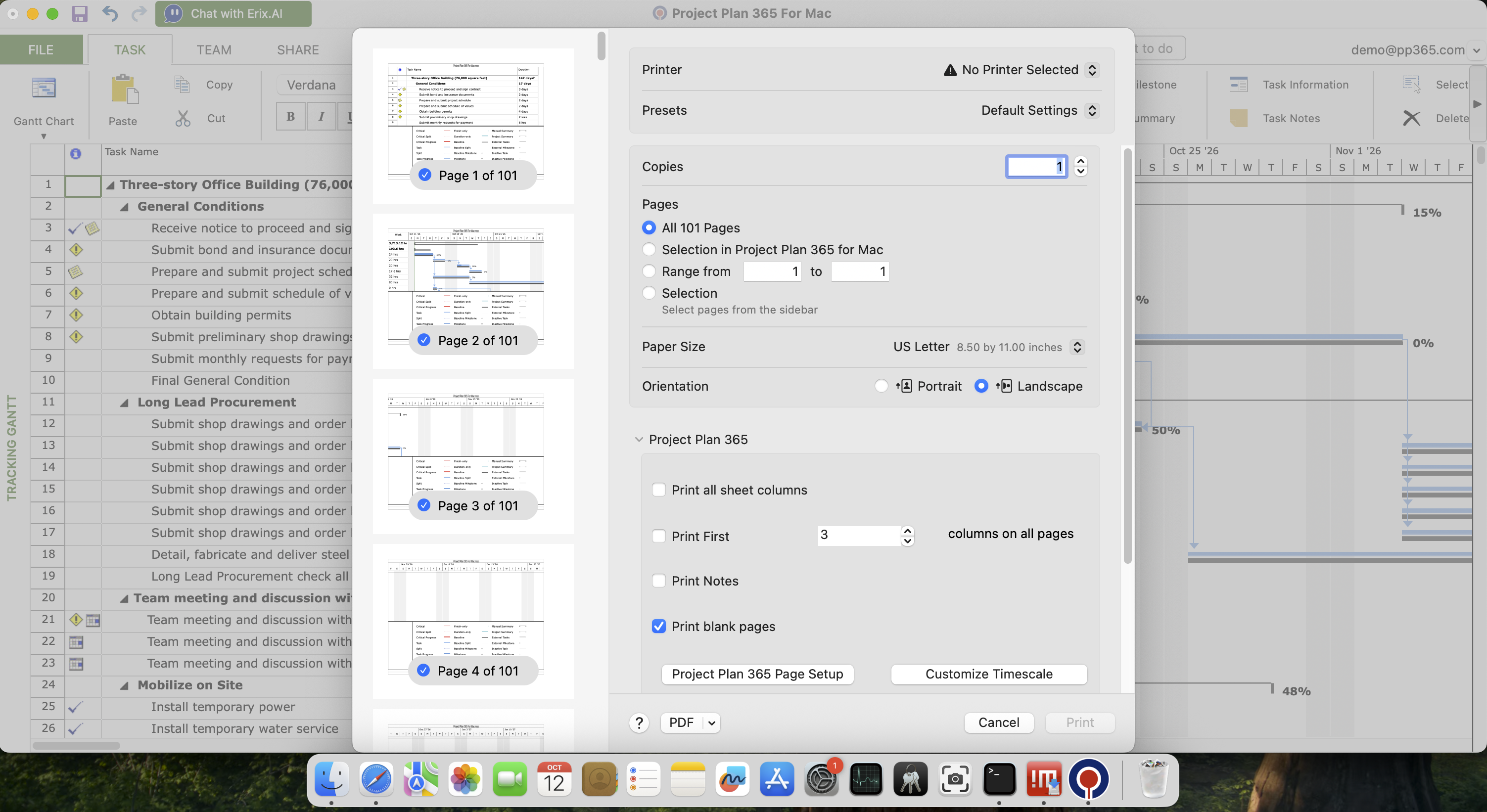
Select the view you want to print, then go to File → Print → Print. Choose your printer and the required print settings, review the preview, and click Print.
Can I save a project view as PDF on Mac?
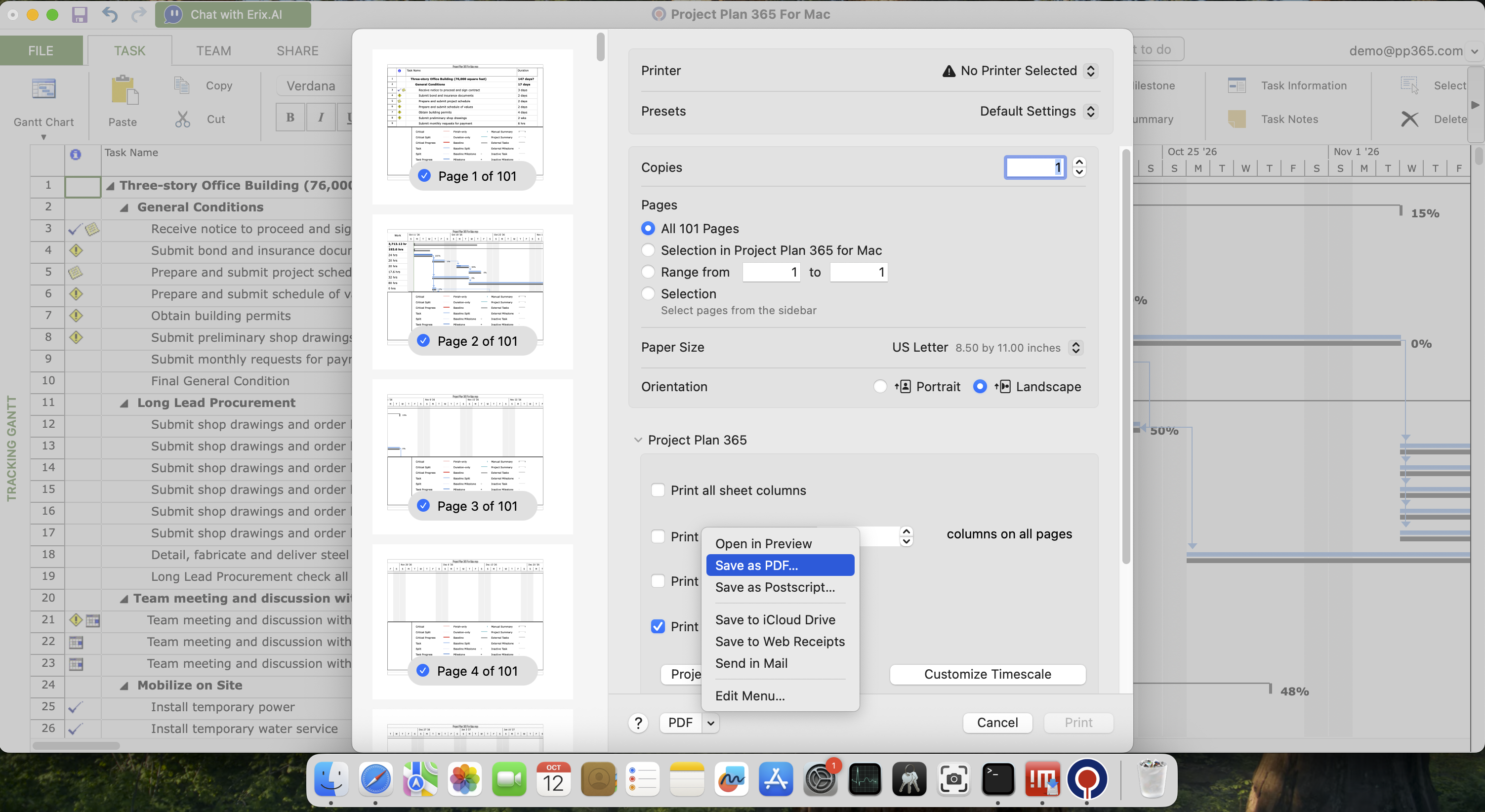
Yes. Open the Print dialog and use the PDF menu to save the selected project view as a PDF file.
A PDF provides a printable copy of the view. Keep the MPP file to continue working with the project schedule.
Can I choose which project information to print on Mac?
Yes. Before printing, select the appropriate view and adjust the displayed information. You can hide columns, collapse subtasks, or filter the project to show only the information you want to include.
Step by step on how to install and sign in to Project Plan 365 on Mac
- Open the Download page.
- Select Mac and click Download Project Plan 365.

- Open the downloaded .pkg installer.
- Follow the onscreen installation instructions and click Close when installation is complete.
- Launch Project Plan 365 from Applications or Launchpad.
- In the Sign In dialog displayed when the application opens, sign in with your Project Plan 365 account. If you purchased a subscription from the website, use the account associated with that subscription.


Step by step on how to open an MPP file stored on your Mac
- Launch Project Plan 365.
- Go to File → Open → Computer.

- Locate and select the .mpp file.
- Click Open.
- Review the project in the displayed view. To see the schedule as task bars, select View → Gantt Chart.

Step by step on how to open an MPP file from cloud storage on Mac
- Go to File → Open.
- Select the cloud service where your project is stored.
- Sign in to the service if prompted.
- Navigate to the folder containing your project.
- Select the MPP file and open it.
- Review the project in Project Plan 365.
Step by step on how to switch project views on Mac
- Open an MPP file.
- Go to the View tab.

- Select the view you want to use. For example:
- Gantt Chart to review the schedule.
- Resource Sheet to review project resources.
- Task Usage to review task assignments and work over time.
- Use More Views to access additional views.

- Switch between views as needed to review different project information.
Step by step on how to save an MPP file on your Mac
- Go to File → Save As.

- Expand Other locations and select Computer.
- Choose the destination folder.
- Enter a filename and save the project in MPP format.
- Click Save.

- Use File → Save when you need to save further changes.
Step by step on how to save an MPP file to cloud storage on Mac
- Go to File → Save As.
- Expand Other locations and select the cloud service.
- Sign in if prompted.
- Choose the destination folder and enter the filename.
- Click Save.
Step by step on how to print or save a project view as PDF on Mac
- Open your project and select the view you want to share.
- Adjust the displayed information as needed.
- Go to File → Print → Print.
- Review the preview and choose the paper size, orientation, and other print settings.
- Click Print to print the view, or use the PDF menu to save it as a PDF.
- For PDF output, enter a filename, choose a destination, and save.