


In most cases, a project should be scheduled from a known start date. When creating a new project plan, one of the first steps is to define this start date, as it marks the point when project activities can begin.
The first step in creating a schedule is opening a new file and designating a project start date or finish date, as well as other general project information. For most projects, it is most effective to schedule a project from a start date and let Project Plan 365 determine the finish date based on the tasks, durations, dates, and other information you enter. If you don't enter a project start date, Project Plan 365 automatically uses the current date as the start date.
Important! Please know that in Project Plan 365 a project can only be scheduled from the start date and not from the finish date.
Step by step on how to set the start date for your project:
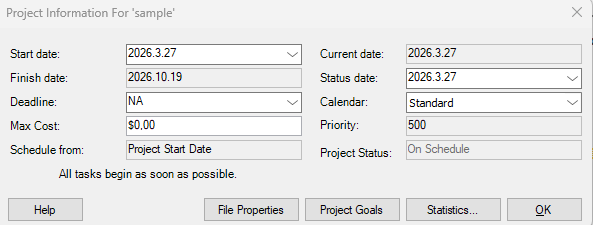
1. Go to menu Project– Project Information.

2. Find the project Start Date field and modify it as desired.
Project management tip
Schedule your project from a start date whenever possible. Even if you know the deadline, starting from a start date gives you more flexibility when planning and adjusting your schedule.
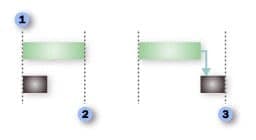
When you add a new task, it is automatically scheduled to start on the project’s start date. As you add more tasks and link them together, their start times will adjust, and the project’s finish date will be determined by the last task to be completed.
Key points
- When creating a new project, begin by setting the start date. All tasks will initially start from this date unless you specify otherwise.
- For automatically scheduled tasks (default), without dependencies or constraints,
the project duration is equal to the duration of the longest task. This means the project finish date matches the finish date of that task. - Task dependencies (for example, Finish-to-Start) can shift task timings and may change the overall project finish date.
 Practice

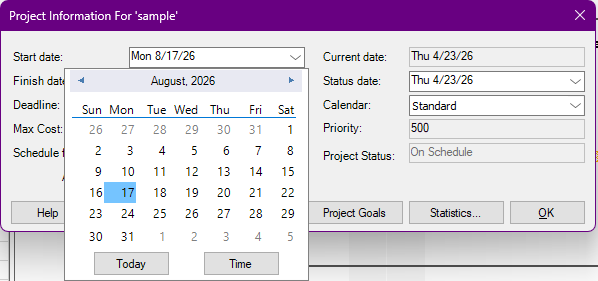
1. Using the Project Information option available under Project menu, change the start date of the project to be 15-08-2016 (i.e. 15th August 2016).
Video

If you prefer to see things in action, rather than reading text, watch out this video, which covers some of the topics from this section.

