

Erix AI
Online Help > Erix AI
What is Erix AI?
Erix AI is an advanced AI-powered assistant within Project Plan 365 that can answer project management-related questions, provide task and resource status updates, deliver project insights and even generate projects.
What types of questions can Erix AI answer to?
Erix AI can answer to questions about:
- Project Status;
- Task Status;
- Resource Status;
- Resource Usage;
- Cash Flow and Budget;
- Email Generating Queries;
- Project Management Help & FAQs.
Note: Click on the above categories to view what questions are supported by Erix AI.
What subscription option is required to use Erix AI?
Erix AI is available with both Standard and Business Subscriptions.
How do I access Erix AI in Project Plan 365?
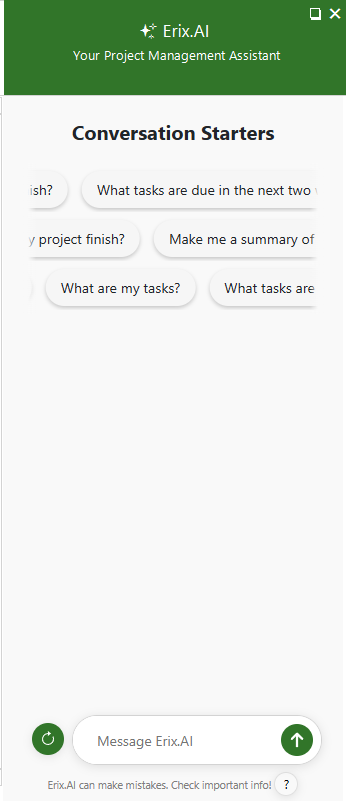
To access Erix AI, in the Project Plan 365 application, click on the Chat with Erix button and start the conversation.
Can I ask Erix AI questions about project status?
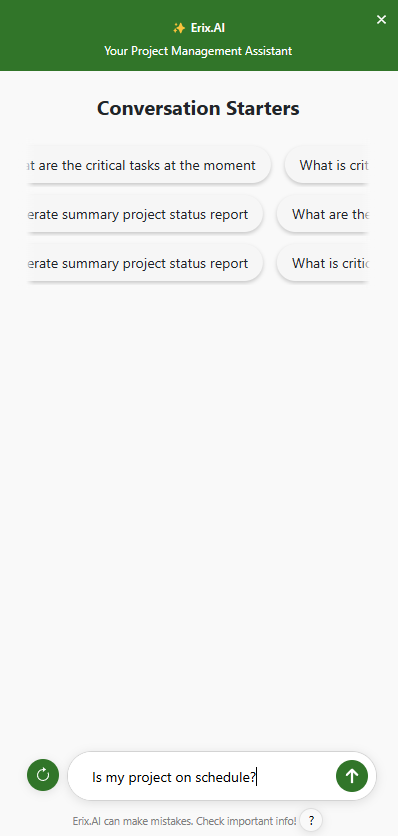
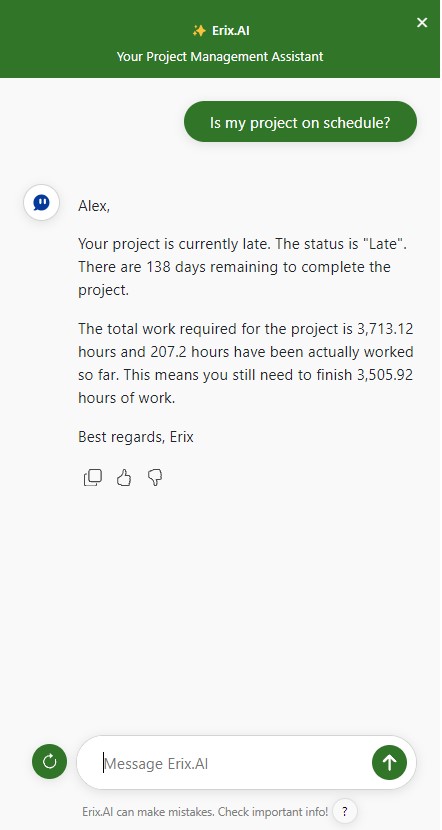
You can ask Erix AI questions about project status, first open the desired project. Click on the Chat with Erix button from the Quick Access Toolbar. Either click on a conversation starter from the center section or type in a question about project status (e.g., Is my project on schedule?)
Note: Click here to view what questions are supported by Erix AI.
Can I ask Erix AI questions about task status?
You can ask Erix AI questions about task status, first open the desired project. Click on the Chat with Erix button from the Quick Access Toolbar. Either click on a conversation starter from the center section or type in a question about task status (e.g., What tasks are late?)
Note: Erix AI can show only 5 tasks per answer, to see the full list of tasks, ask Erix AI to show them by typing in “Show next tasks” and press Enter.
Note: Click here to view what questions are supported by Erix AI.
Can I ask Erix AI questions about resource status?
You can ask Erix AI questions about resource status, first open the desired project. Click on the Chat with Erix button from the Quick Access Toolbar. Either click on a conversation starter from the center section or type in a question about resource status (e.g., What resources are overallocated?)
Note: Erix AI can show only 5 resources per answer, to see the full list of resources, ask Erix AI to show them by typing in “Show next tasks” and press Enter.
Note: Click here to view what questions are supported by Erix AI.
Can I ask Erix AI questions about resource usage?
You can ask Erix AI questions about resource usage, first open the desired project. Click on the Chat with Erix button from the Quick Access Toolbar. Either click on a conversation starter from the center section or type in a question about resource usage (e.g., What tasks is [resource_name] working on?)
Note: Erix AI can show only 5 resources/tasks per answer, to see the full list of resources, ask Erix AI to show them by typing in “Show next tasks” and press Enter.
Note: Click here to view what questions are supported by Erix AI.
Can I ask Erix AI questions about cash flow and budget?
You can ask Erix AI questions about cash flow and budget, first open the desired project. Click on the Chat with Erix button from the Quick Access Toolbar. Either click on a conversation starter from the center section or type in a question about cash flow and budget (e.g., What is the total cost for tasks scheduled this week?)
Note: Click here to view what questions are supported by Erix AI.
Can I ask Erix AI questions about email generating queries?
You can ask Erix AI questions about email generating queries, first open the desired project. Click on the Chat with Erix button from the Quick Access Toolbar. Either click on a conversation starter from the center section or type in a question about email generating queries (e.g., Generate an email about project status.)
Note: Click here to view what questions are supported by Erix AI.
Can I ask Erix AI questions about project management?
You can ask Erix AI any question about project management by clicking on the Chat with Erix button from the Quick Access Toolbar. Either click on a conversation starter from the center section or type in a question about project management (e.g., What is a milestone?)
Note: Click here to view what questions are supported by Erix AI.
How to start a new conversation in Erix AI?
To start a new conversation in Erix AI, click on the Refresh icon button on the left side of the chat bar.
Can Erix AI create a project?
You can create a project from scratch with Erix.AI. Simply ask Erix.AI to “Create plan” and it will provide 2 options. Click on the “Create Project with Erix.AI” button and the generation flow will begin. For more information, please check the Erix AI Create Project Online Help Article.
On what platforms is Erix AI available?
Erix AI is currently available on our Windows, Mac and Web platform.
To access the Web Platform please go to the following link: https://online.projectplan365.com/projectviewernow/tViews.aspx
Why Erix AI cannot answer to my question?
The reason why Erix AI cannot answer to a question might be because it is not yet supported. Please check our list of what questions are supported by Erix AI here.
Why doesn’t Erix AI show the entire list of tasks/resources?
Erix AI can show only 5 tasks/resources per answer. To see the full list of tasks/resources, ask Erix AI to show them by typing in “Show next tasks/resources” and press Enter.
Note: You can also just type in "next" or "more" for Erix AI to display the next tasks/resources.
How to scroll though conversation starters?
To scroll through conversation starters, hover the cursor over the Conversation Starters section and use the mouse or touchpad scroll.
How to create a new project using Erix.AI?
To create a project with Erix.AI, follow the steps below:
- Go to menu File – New – Create project with Erix.AI.
- In the form that appears, provide a Project Name – click Next.
- Enter a Project Description – click Next.
- Add milestones by typing in a name and selecting a date and clicking Add milestone button – then click Next. Note that this step can be skipped.
- Select a Project Timeline if needed and click Next. Note that this step can be skipped.
- Upload a MPP or PDF file and click Generate Project. Note that this step can be skipped.
- The project will be generated and opened on the Gantt Chart View.
For more information, please check the Erix AI Create Project Online Help Article.
Note: On Mac platform, creating a project with Erix.AI is currently available only when first Signing Up and starting a trial.
How many times can Erix.AI regenerate the project?
You can create as many projects with Erix.AI as you need.
Can I ask Erix.AI to make changes in the project after I have already saved it?
At this moment, you cannot ask Erix.AI to make changes to the project that has already been saved. Adjustments to the project can be made only in the Erix.AI generation flow.
If I skip the create with Erix.AI step, can I access it again?
The Create with Erix.AI step is skipped after first starting a trial, it can be accessed from the File – New – Create with Erix button or from the Chat with Erix box.
Step by step on how to access Erix AI in Project Plan 365:
1. Open Project Plan 365 app.
2. Click on the Chat with Erix.

3. Erix.AI panel will be opened on the right side of the app.
Step by step on how to ask Erix AI questions about project status:
1. Open Project Plan 365 app.
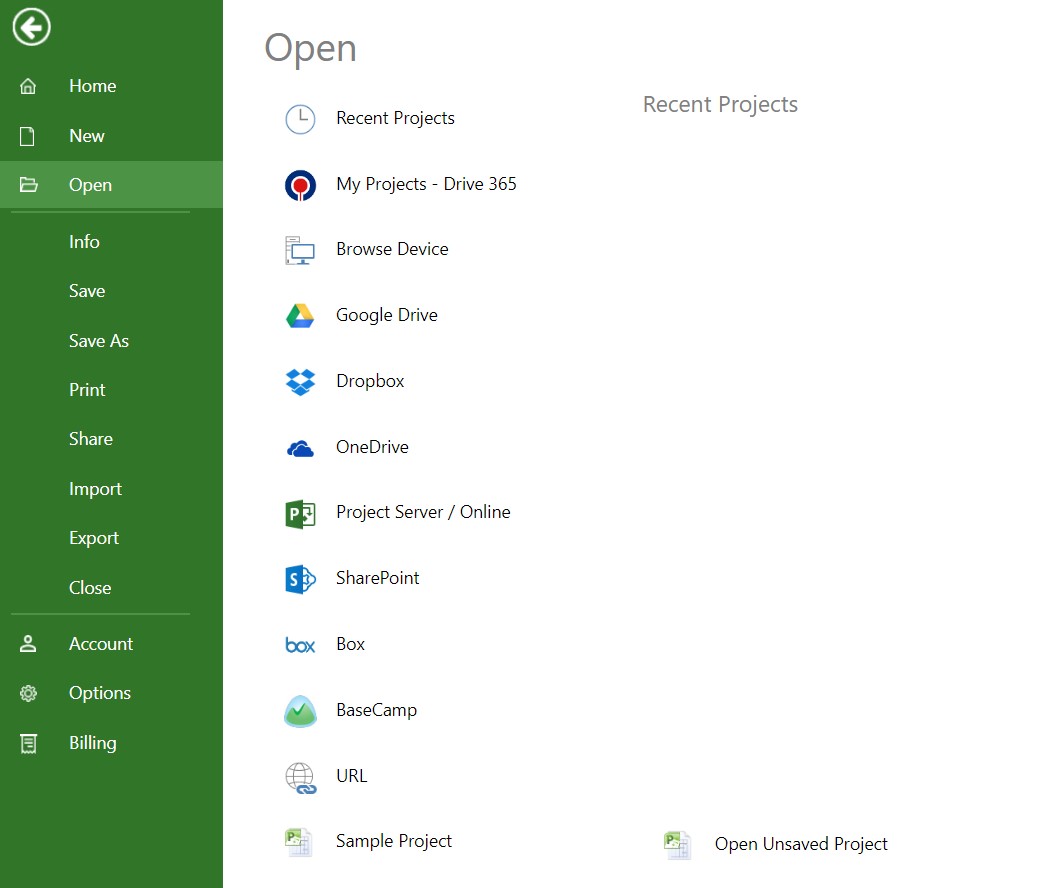
2. Open the desired project by going to menu File – Open.
3. Click on the Chat with Erix button.
4. Either click on a conversation starter from the center section or type in a question about project status in the chat bar and press Enter (e.g., Is my project on schedule?)
Note: Click here to view what questions are supported by Erix AI.
6. Erix will generate your answer.
Step by step on how to ask Erix AI questions about task status:
1. Open Project Plan 365 app.
2. Open the desired project by going to menu File – Open.
3. Click on the Chat with Erix button.
Note: Make sure you are Signed In inside the app to be able to use Erix AI.
4. Either click on a conversation starter from the center section or type in a question about task status in the chat bar and press Enter (e.g., What tasks are late?).
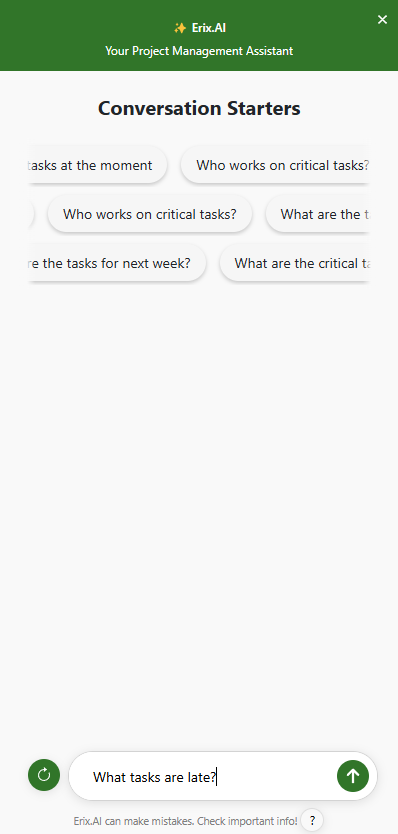
Note: Click here to view what questions are supported by Erix AI.
6. Erix will generate your answer.
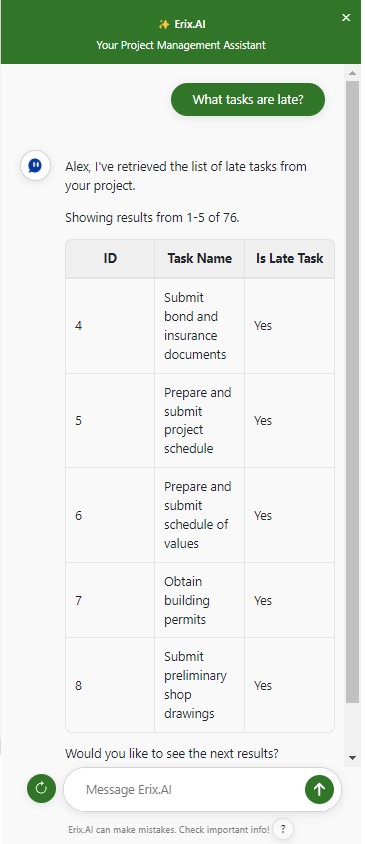
Note: Erix AI can show only 5 tasks per answer, to see the full list of tasks, ask Erix AI to show them by typing in “Show next tasks” and press Enter.
Step by step on how to ask Erix AI questions about resource status:
1. Open Project Plan 365 app.
2. Open the desired project by going to menu File – Open.
3. Click on the Chat with Erix button.
Note: Make sure you are Signed In inside the app to be able to use Erix AI.
4. Either click on a conversation starter from the center section or type in a question about resource status in the chat bar and press Enter (e.g., What resources are overallocated?).
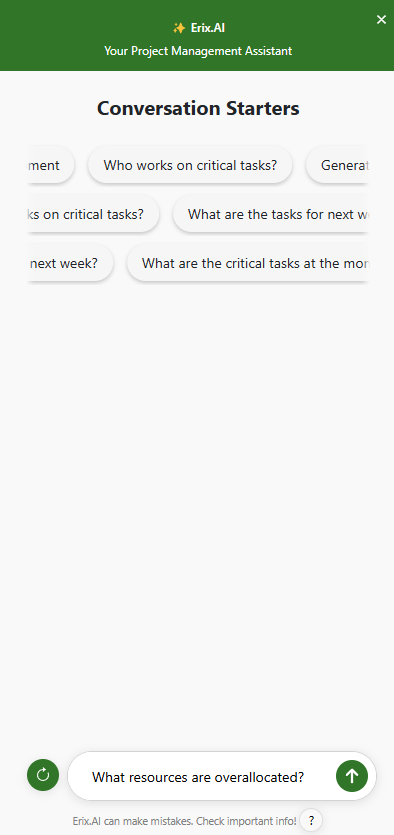
Note: Click here to view what questions are supported by Erix AI.
6. Erix will generate your answer.
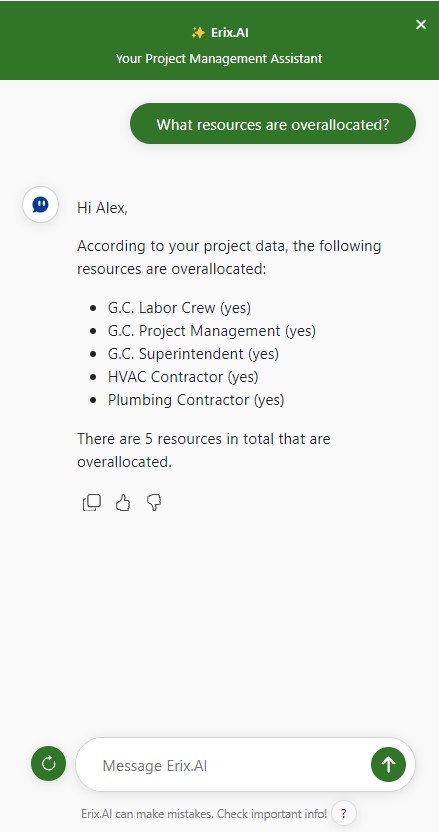
Note: Erix AI can show only 5 resources per answer, to see the full list of tasks, ask Erix AI to show them by typing in “Show next resources” and press Enter.
Step by step on how to ask Erix AI questions about resource usage:
1. Open Project Plan 365 app.
2. Open the desired project by going to menu File – Open.
3. Click on the Chat with Erix button.
Note: Make sure you are Signed In inside the app to be able to use Erix AI.
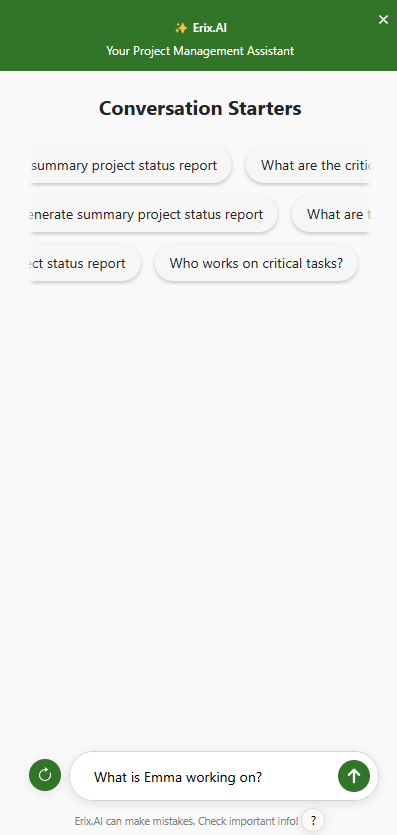
4. Type in a question about resource usage in the chat bar and press Enter (e.g., What tasks is [resource_name] working on?).
Note: Click here to view what questions are supported by Erix AI.
6. Erix will generate your answer.
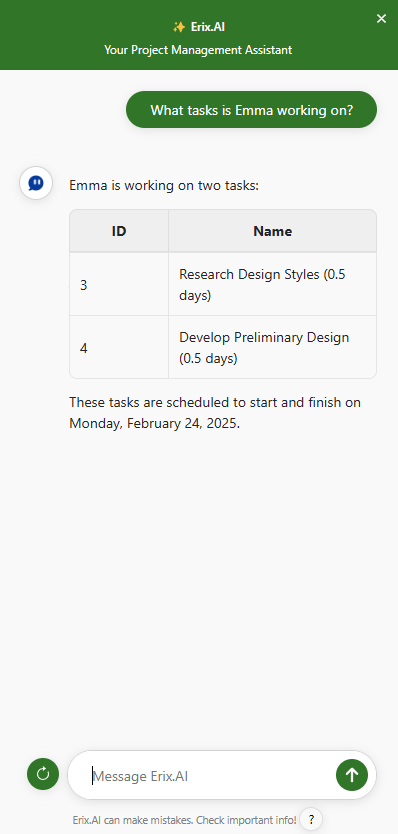
Note: Erix AI can show only 5 tasks per answer, to see the full list of tasks, ask Erix AI to show them by typing in “Show next” and press Enter.
Step by step on how to ask Erix AI questions about cash flow and budget:
1. Open Project Plan 365 app.
2. Open the desired project by going to menu File – Open.
3. Click on the Chat with Erix button.
Note: Make sure you are Signed In inside the app to be able to use Erix AI.
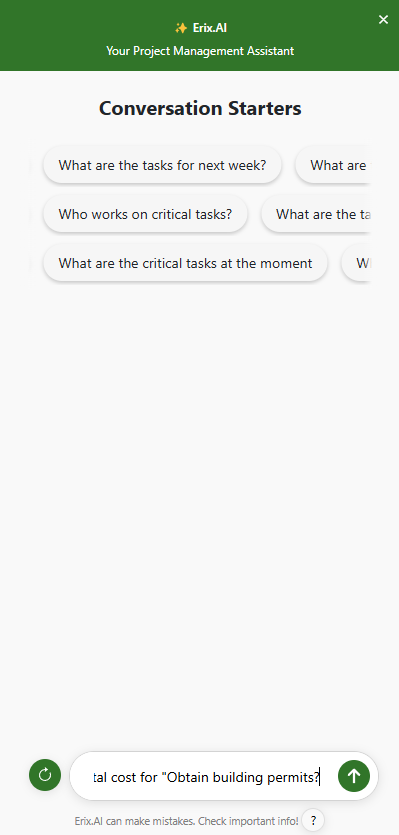
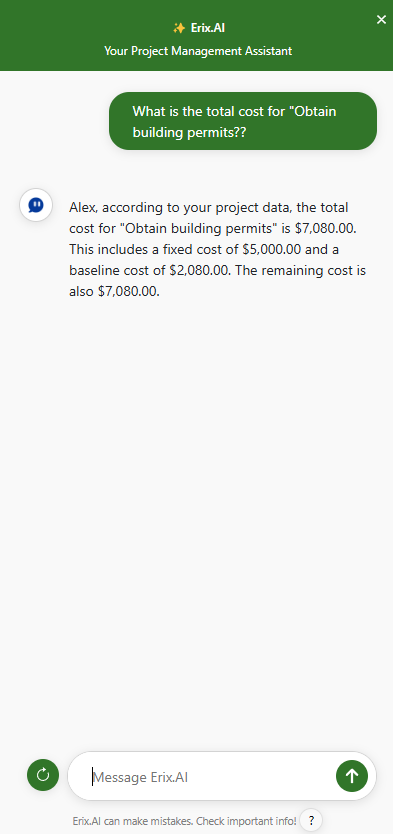
4. Type in a question about cash flow or budget in the chat bar and press Enter (e.g., What is the total cost for [task_name]?).
Note: Click here to view what questions are supported by Erix AI.
6. Erix will generate your answer.
Step by step on how to ask Erix AI questions about email generating queries:
1. Open Project Plan 365 app.
2. Open the desired project by going to menu File – Open.
3. Click on the Chat with Erix button.
Note: Make sure you are Signed In inside the app to be able to use Erix AI.
4. Type in a question about an email in the chat bar and press Enter (e.g., Generate an email about project status).
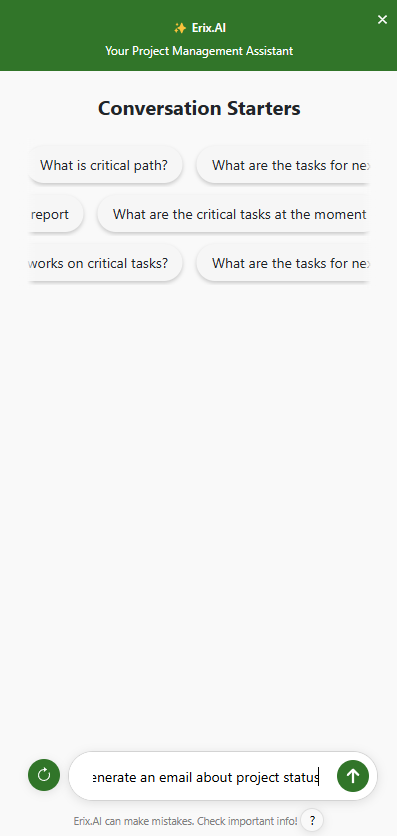
Note: Click here to view what questions are supported by Erix AI.
6. Erix will generate your answer.
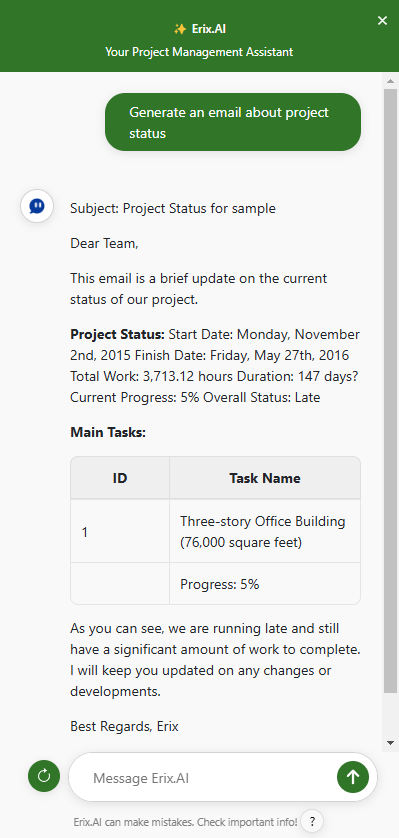
Note: Click on the Copy icon and paste the generated email directly in your email content.
Step by step on how to ask Erix AI questions about project management:
1. Open Project Plan 365 app.
2. Click on the Chat with Erix button.
Note: Make sure you are Signed In inside the app to be able to use Erix AI.
3. Either click on a conversation starter from the center section or type in a question about project management in the chat bar and press Enter (e.g., What is a milestone?)
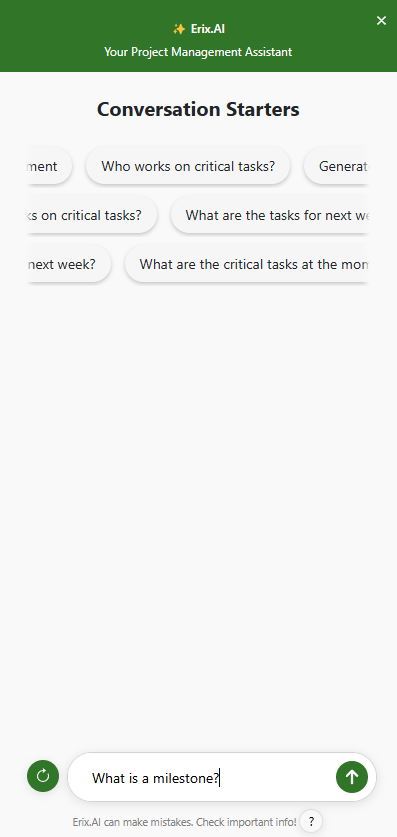
Note: Click here to view what questions are supported by Erix AI.
5. Erix will generate your answer.
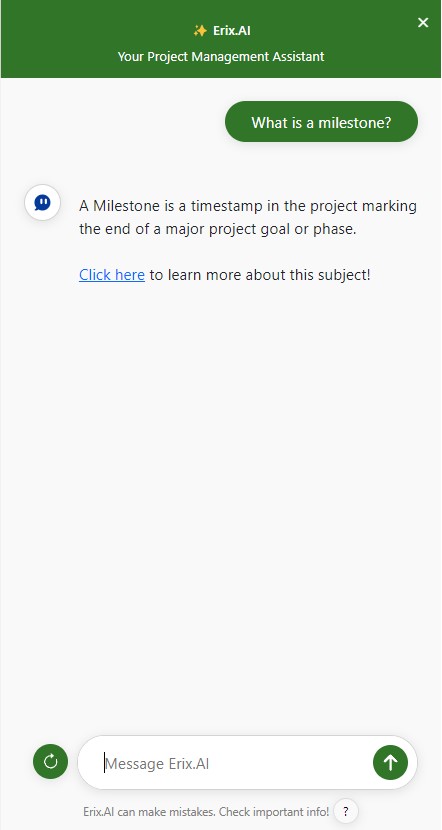
Note: Click on the Click here button to access the Online Help Article for more information about the requested subject.
Step by step on how to create your first project with Erix AI in Project Plan 365:
1. Open Project Plan 365.
2. Click on Create Account button.
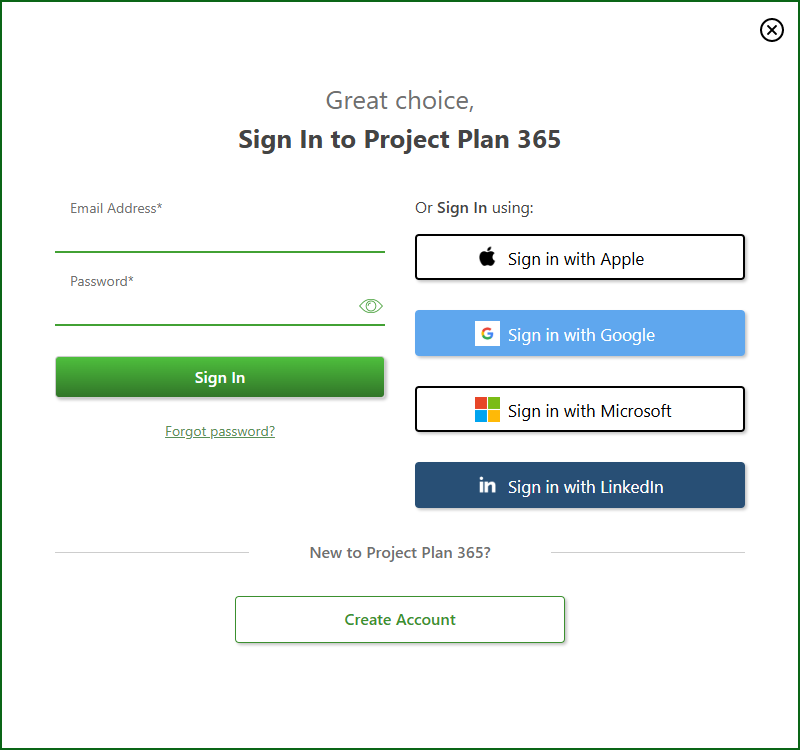
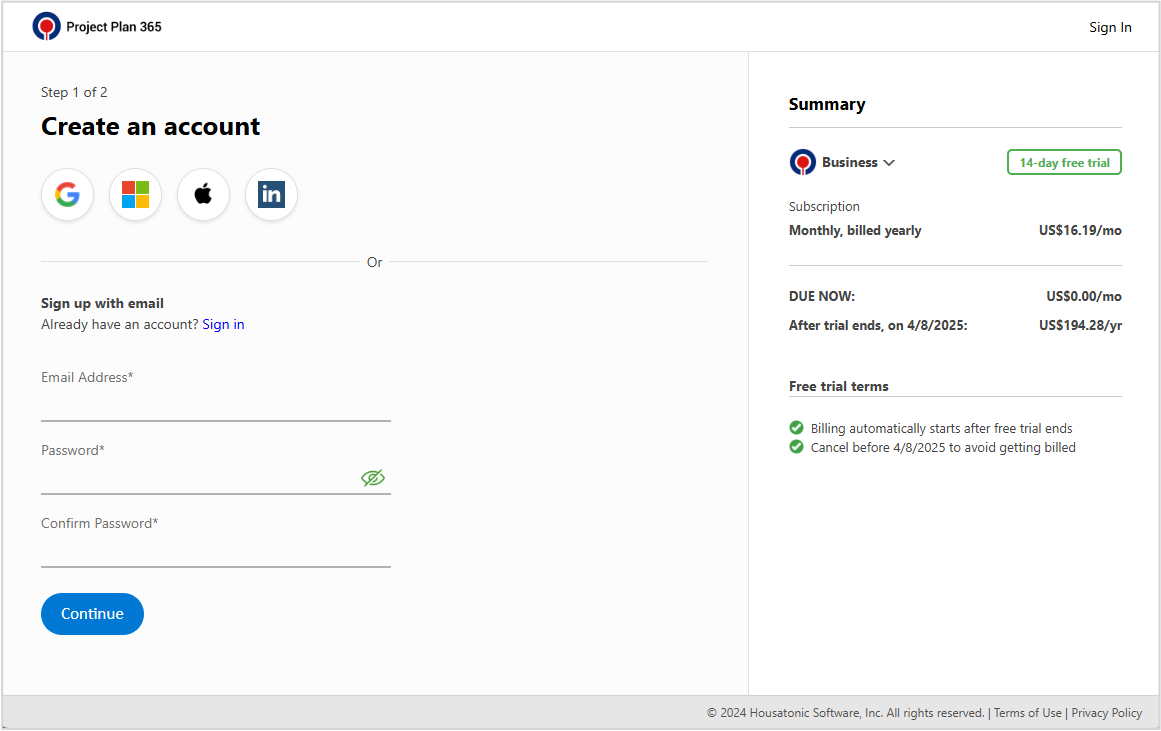
3. Type in an email address and password or select a third-party option.
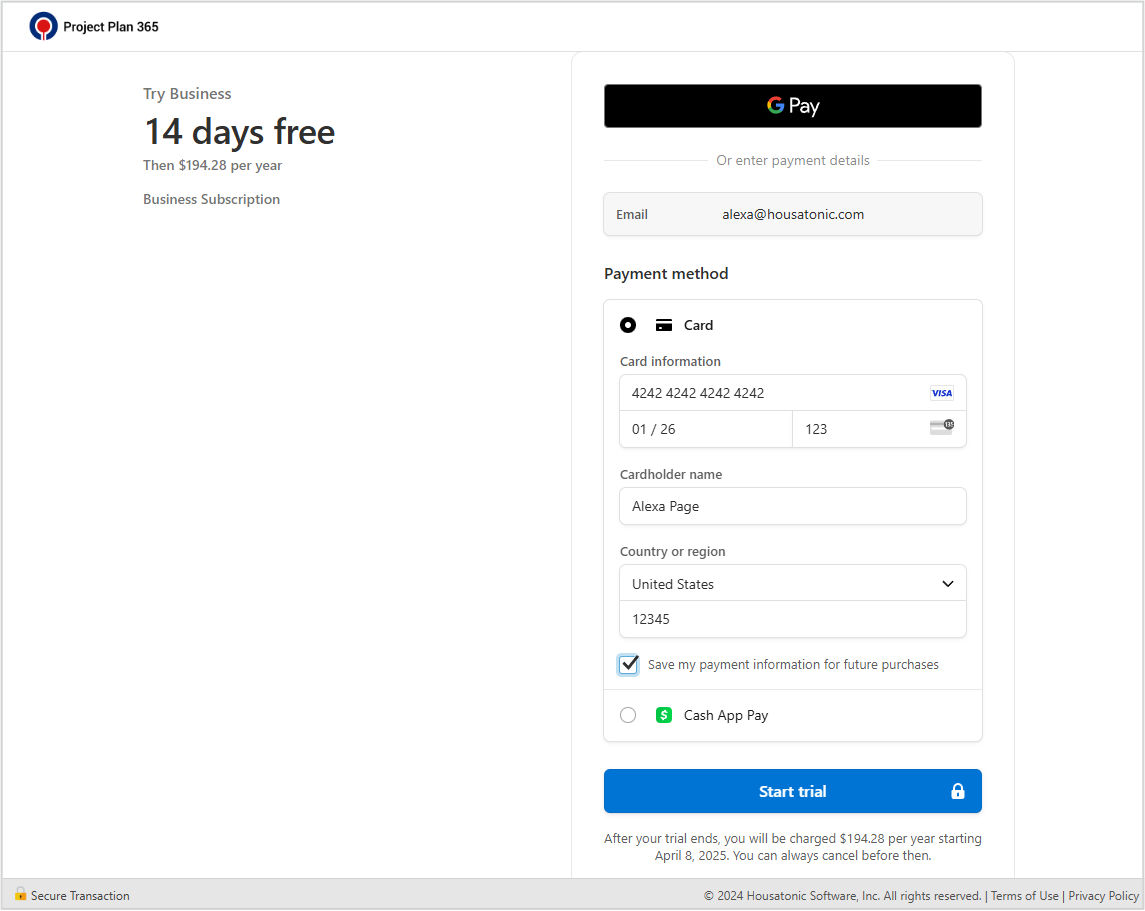
4. Select the payment option and click Start Trial.
5. Return to the app.
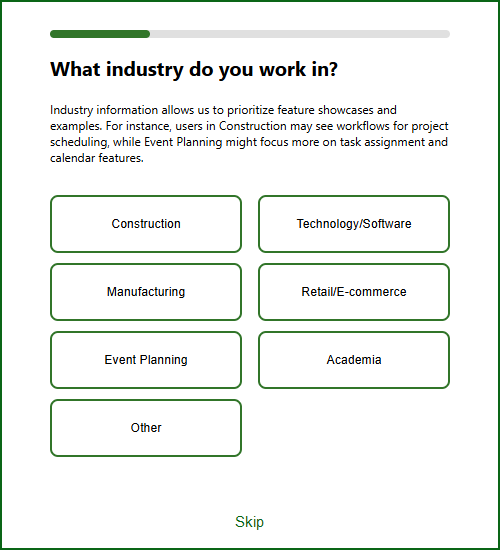
6. Complete or skip the survey.
7. In the Welcome dialog, click on the Create New Project button.
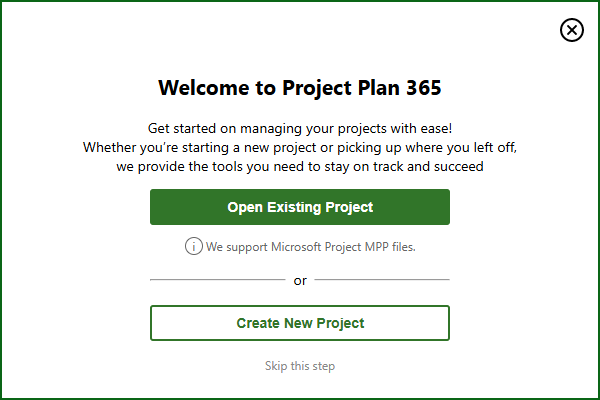
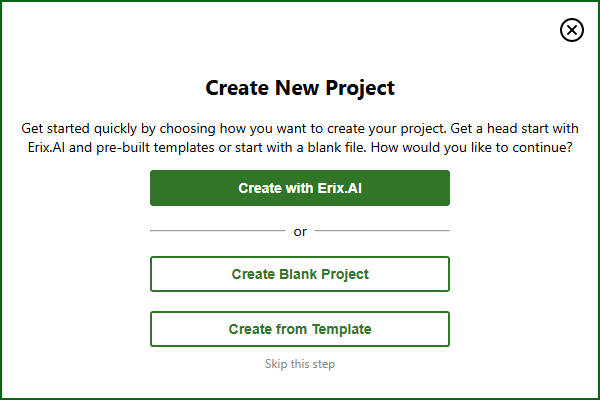
8. Click on Create with Erix.AI.
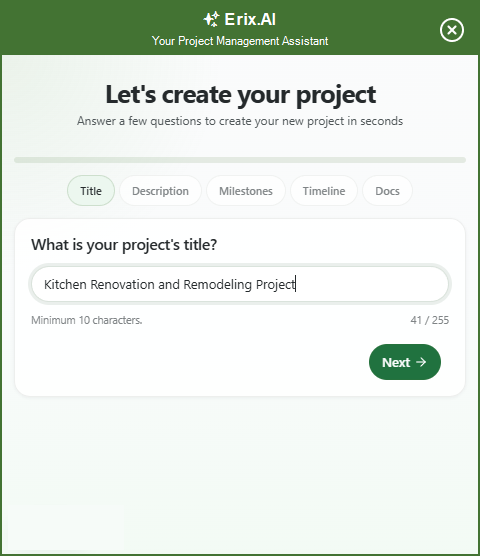
9. In the form that appears, provide a Project Name – click Next.
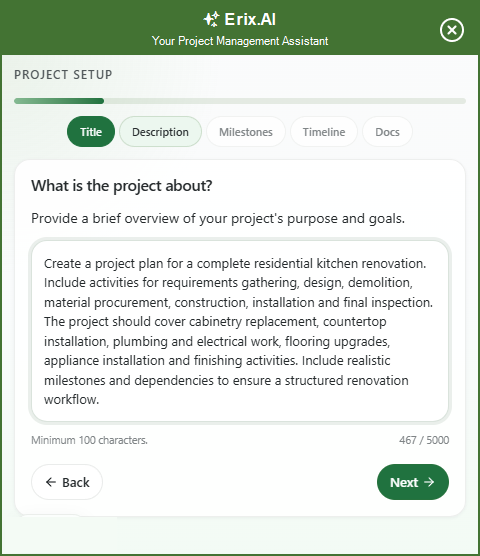
10. Enter a Project Description – click Next.
11. Add milestones by typing in a name and selecting a date and clicking Add milestone button – then click Next.
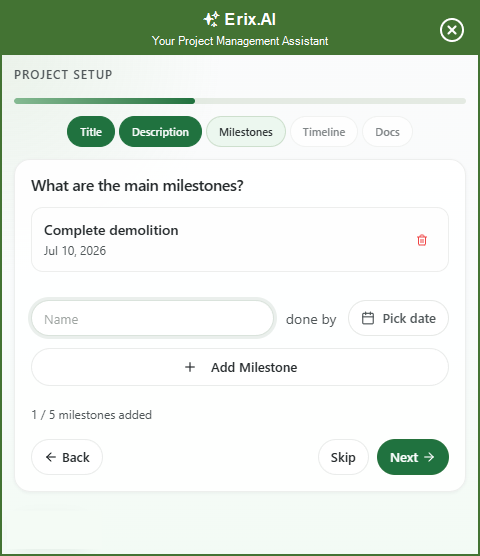
Note: This step can be skipped.
12. Select a Project Timeline if needed and click Next.
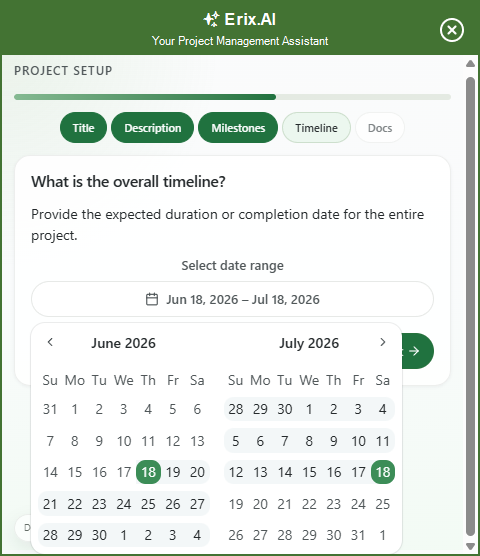
Note: This step can be skipped.
11. Upload a MPP or PDF file.
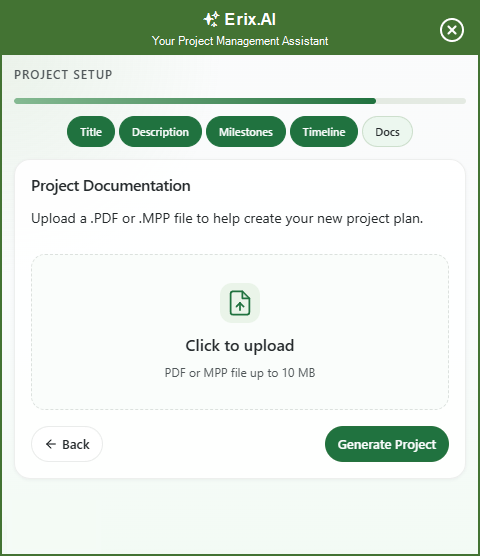
Note: This step can be skipped.
13. Click on Generate Project.
14. Erix.AI will open the on Gantt Chart View.
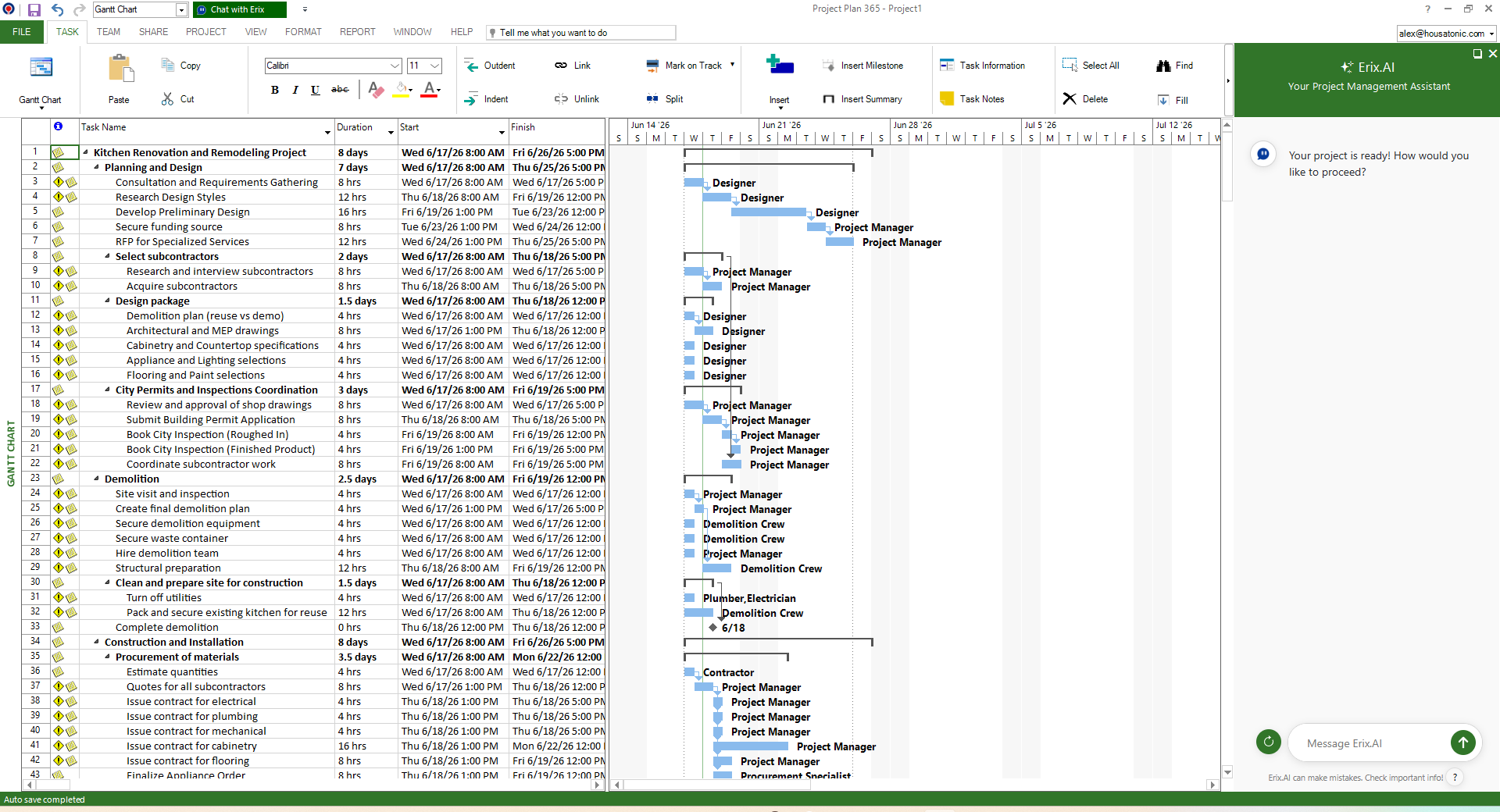
Note: On the Windows platform you can create more projects with Erix.AI by going to menu File – New – Create with Erix.AI or from the Chat with Erix box.
For more information, please check the Erix AI Create Project Online Help Article.
Supported Questions
Project Status
What is the total duration of the project?
Supported Questions | Note |
| What is the project start/baseline start/actual start date? | |
| What is the project finish/baseline finish/actual finish date? | |
| How long will the project take? | |
| What's the status of the project? | |
| Is the project on schedule? | |
| What are the goals of this project? | |
| Will delaying [Task Name] affect project's finish date? | |
| Make me a summary of the project | |
| What tasks must be completed before [Task Name]? | Only 5 tasks will be displayed. To show more tasks, type in "Show next tasks" and press Enter. |
| What tasks are being late? | Only 5 tasks will be displayed. To show more tasks, type in "Show next tasks" and press Enter. |
| What are the upcoming tasks? | Only 5 tasks will be displayed. To show more tasks, type in "Show next tasks" and press Enter. |
| What is the total/baseline/actual/remaining duration of the project? | |
| What is the total/baseline/actual/remaining work of the project? | |
| What is the total/baseline/actual/remaining cost of the project? | |
| Make me a project overview | |
| Which milestones have been completed? | Only 5 tasks will be displayed. To show more tasks, type in "Show next tasks" and press Enter. |
| What tasks are due in the next two weeks? | Only 5 tasks will be displayed. To show more tasks, type in "Show next tasks" and press Enter. |
| How much work is left on the project? | |
| What is the Critical Path of the project? | |
| Which tasks are due today? | Only 5 tasks will be displayed. To show more tasks, type in "Show next tasks" and press Enter. |
| Which tasks are due next week? | Only 5 tasks will be displayed. To show more tasks, type in "Show next tasks" and press Enter. |
| Make me a summary of the main project phases | |
| Make me a summary for the next week | |
| Are there any tasks behind the schedule? | Only 5 tasks will be displayed. To show more tasks, type in "Show next tasks" and press Enter. |
| Any late tasks on the critical path? | Only 5 tasks will be displayed. To show more tasks, type in "Show next tasks" and press Enter. |
| What are the key milestones? (i.e., milestones on the critical path??) | Only 5 tasks will be displayed. To show more tasks, type in "Show next tasks" and press Enter. |
| Are there any unscheduled tasks? (i.e., no resources) | |
| What are the start and end dates for each phase of the project? | |
| When are the critical milestones scheduled to be completed? | |
| When is the project starting? | |
| Which tasks are due tomorrow? | Only 5 tasks will be displayed. To show more tasks, type in "Show next tasks" and press Enter. |
| Are there any scheduling conflicts in the project? | |
| What tasks should start next week? | Only 5 tasks will be displayed. To show more tasks, type in "Show next tasks" and press Enter. |
| What is the status for [Project Phase Name] project phase? | |
| What are the upcoming milestones? | Only 5 tasks will be displayed. To show more tasks, type in "Show next tasks" and press Enter. |
| What tasks are not scheduled in this project? (i.e., no resources) | Only 5 tasks will be displayed. To show more tasks, type in "Show next tasks" and press Enter. |
| What is the project start/baseline start/actual start date? | |
| What is the project finish/baseline finish/actual finish date? | |
| How long will the project take? | |
| What's the status of the project? | |
| Is the project on schedule? | |
| What are the goals of this project? | |
| Will delaying [Task Name] affect project's finish date? | |
| Make me a summary of the project | |
| What tasks must be completed before [Task Name]? | Only 5 tasks will be displayed. To show more tasks, type in "Show next tasks" and press Enter. |
| What tasks are being late? | Only 5 tasks will be displayed. To show more tasks, type in "Show next tasks" and press Enter. |
| What are the upcoming tasks? | Only 5 tasks will be displayed. To show more tasks, type in "Show next tasks" and press Enter. |
| What is the start/finish/duration/work/cost variance? | |
| What is the difference between the baseline start/finish/duration/work/cost and actual start/finish/duration/work/cost? | |
| What is the difference between the baseline finish and actual finish? | |
| What is the percentage of work completed? | |
| How much of the project is complete? | |
| What is the percentage of project completion? | |
| What is the variance in project duration? | |
| How much time is left to complete the project? | |
| How much work is left to be done? | |
| What is my project cost? | |
| What is the baseline/actual/remaining cost of the project? | |
| What is the cost variance for the project? | |
| How much of the budget has been spent? | |
| What is the percentage of the budget spent? | |
| Is the project over budget? | |
| How much is left in the project budget? | |
| Which goals are completed? | Only 5 tasks will be displayed. To show more tasks, type in "Show next tasks" and press Enter. |
| What goals are still pending? | Only 5 tasks will be displayed. To show more tasks, type in "Show next tasks" and press Enter. |
| How many goals have been achieved? | Only 5 tasks will be displayed. To show more tasks, type in "Show next tasks" and press Enter. |
| Can you summarize project goals? | |
| What is the status of the goal [goal_name]? | |
| Has the goal [goal_name] been completed? | Only 5 tasks will be displayed. To show more tasks, type in "Show next tasks" and press Enter. |
| What is the criterion for the goal [goal_name]? | |
| What is the project deadline? | |
| When is the deadline for the project? | |
| What is the due date of the project? | |
| When does the project need to be completed by? | |
| Is my project on schedule to finish? |
Task Status
Supported Questions | Note |
| What is the deadline for [Task Name]? | |
| What is the progress for [Task Name]? | |
| Is [Task Name] completed? | |
| What are the task notes for [Task Name]? | |
| Did work begin at [Task Name]? | |
| What tasks will succeed [Task Name]? | Only 5 tasks will be displayed. To show more tasks, type in "Show next tasks" and press Enter. |
| Are there any constraints for [Task Name]? | |
| What are the dependencies for [Task Name]? | |
| Are there any scheduling conflicts for [Task Name]? | |
| Did work finished at [Task Name]? | |
| Which tasks are driving the critical path? | Only 5 tasks will be displayed. To show more tasks, type in "Show next tasks" and press Enter. |
| How many tasks are late? | Only 5 tasks will be displayed. To show more tasks, type in "Show next tasks" and press Enter. |
| How many tasks have not yet started? | Only 5 tasks will be displayed. To show more tasks, type in "Show next tasks" and press Enter. |
| How many tasks are in progress? | Only 5 tasks will be displayed. To show more tasks, type in "Show next tasks" and press Enter. |
| What is the total number of tasks in the project? | |
| How many tasks are pending? | Only 5 tasks will be displayed. To show more tasks, type in "Show next tasks" and press Enter. |
| What is the current status of the tasks? | |
| How many tasks need to be finished? | Only 5 tasks will be displayed. To show more tasks, type in "Show next tasks" and press Enter. |
| How many tasks are remaining? | Only 5 tasks will be displayed. To show more tasks, type in "Show next tasks" and press Enter. |
Resource Status
Supported Questions | Note |
| Who is working on this project? | Only 5 resources will be displayed. To show more tasks, type in "Show next resources" and press Enter. |
| Who is working on [Task Name]? | Only 5 resources will be displayed. To show more tasks, type in "Show next resources" and press Enter. |
| What are the upcoming tasks for [Resource Name]? | Only 5 tasks will be displayed. To show more tasks, type in "Show next tasks" and press Enter. |
| Who is in charge for [Task Name]? | Only 5 resources will be displayed. To show more tasks, type in "Show next resources" and press Enter. |
| Is [Resource Name] overallocated? | |
| What is [Resource Name] working on next week? | Only 5 tasks will be displayed. To show more tasks, type in "Show next tasks" and press Enter. |
| Are there any over-allocated resources? | Only 5 resources will be displayed. To show more tasks, type in "Show next resources" and press Enter. |
| Make me a summary for the [Resource Name] resource | |
| How many work resources are assigned to the project? | Only 5 resources will be displayed. To show more tasks, type in "Show next resources" and press Enter. |
| How many material resources are assigned to the project? | Only 5 tasks will be displayed. To show more tasks, type in "Show next tasks" and press Enter. |
| What is the total number of resources for the project? | |
| How many work resources are over-allocated? | Only 5 resources will be displayed. To show more tasks, type in "Show next resources" and press Enter. |
| Are there any over-allocated resources? | Only 5 tasks will be displayed. To show more tasks, type in "Show next tasks" and press Enter. |
| How many resources are required for the project? | |
| What is the total number of resources working on the project? |
Resource Usage
Supported Questions | Note |
| What tasks is [resource_name] working on? | Only 5 tasks will be displayed. To show more tasks, type in "Show next resources" and press Enter. |
| What tasks is [resource_name] assigned to? | Only 5 tasks will be displayed. To show more tasks, type in "Show next resources" and press Enter. |
| What tasks is [resource_name] working on in week [week_number]? | |
| Show me [resource_name]'s schedule for week [week_number]. | |
| What are the total hours assigned to [resource_name] in week [week_number]? | |
| Which tasks is [resource_name] scheduled to start in week [week_number]? | Only 5 tasks will be displayed. To show more tasks, type in "Show next tasks" and press Enter. |
| How many hours will [resource_name] work in week [week_number]? | |
| What tasks is [resource_name] working on this week? | Only 5 tasks will be displayed. To show more tasks, type in "Show next tasks" and press Enter. |
| What tasks is [resource_name] working on next week? | Only 5 tasks will be displayed. To show more tasks, type in "Show next resources" and press Enter. |
| How many hours is [resource_name] assigned this week? | |
| How many hours is [resource_name] assigned next week? | |
| What is [resource_name]'s workload for the next week? | |
| Which tasks will [resource_name] complete next week? | Only 5 tasks will be displayed. To show more tasks, type in "Show next tasks" and press Enter. |
Cash Flow and Budget
Supported Questions | Note |
| What is the total cost for tasks scheduled this week? | |
| What is the total cost for tasks scheduled next week? | |
| What is the total cost for tasks scheduled in week [week_number]? | |
| How much has been spent on tasks completed last week? | |
| What is the planned task cost for next week? | |
| What is the planned task cost for [task_name]? | |
| What is the planned task cost for [task_name] this week? | |
| What is the planned task cost for [task_name] next week? | |
| What is the planned task cost for [task_name] in week [week_number]? | |
| What is the total cost for [task_name]? | |
| What is the fixed cost for [task_name]? | |
| What is the baseline/actual/remaining cost for [task_name]? | |
| Is [task_name]’s cost on track? | |
| What is the planned cost for [task_name]? | |
| What is the variance for [task_name]? | |
| Is the cost for [task_name] over budget? | |
| Is the cost for [task_name] under budget? |
Email Generating Queries
Supported Questions | Note |
| Generate an email about project | |
| Generate an email about project status | |
| Generate an email about project budget | |
| Generate an email about project dates | |
| Generate an email about project work | |
| Generate an email about project progress | |
| Generate an email about the dates | |
| Generate an email about the project start date | |
| And similarly, for other fields: "Generate an email about the project <field name>." |
Help & FAQs
Supported Questions | Note |
| What is a milestone? | |
| What is a Critical Path? | |
| What is a Critical Task? | |
| How do I insert a task? | |
| How to save a file? | |
| How to add a resource in my project? | |
| How to add task notes? | |
| How do I export to PDF? | |
| How to link tasks? | |
| For more supported FAQs please click here. |
| Related | MS Project Copilot | Erix Chatbot | Microsoft Project Chat GPT | Project Plan 365 Assistant | Erix |
| Platform | Windows | Mac | iOS | Web | Android |
| ✔ | ✔ | ||||
| Product | Project Plan 365 | ||||
| Article ID | 406 | ||||
| Date | 6/30/2026 |


