

Do I need to start a trial to use Project Viewer 365 from Microsoft Store?
Yes. You must start a trial before using the Microsoft Store version of Project Viewer 365. Anonymous usage is not supported.
How many days is available the trial?
The trial period is 14 days.
Why is a payment method required to start the Business free trial in Project Viewer 365 for Microsoft Store?
A payment method is required to activate the trial and enable the subscription system.
You will not be charged during the trial period.
If you cancel before the trial ends, no charge will be applied. To cancel automatic renewal or manage your subscriptions, read the Cancel Subscription online help article.
How do I start the 14-day free Business trial in Project Viewer 365 for Microsoft Store?
To start a Business trial for Project Viewer 365 from Microsoft Store, please follow the steps below:
- Download and install our latest Project Viewer 365 application from Microsoft Store.
- Open the application.
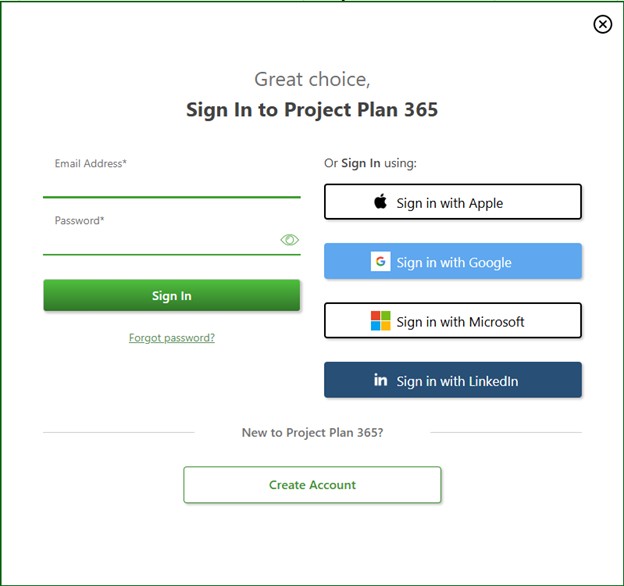
- When the application starts, a dialog will appear asking you to Sign In or Create an Account.
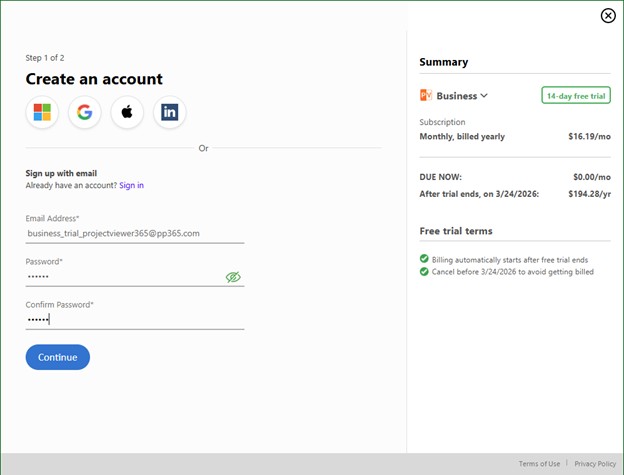
- Click Create Account, then select the Business subscription option from the Summary section. Enter your email address and password, or choose one of the available third-party sign-up options, and click Continue.
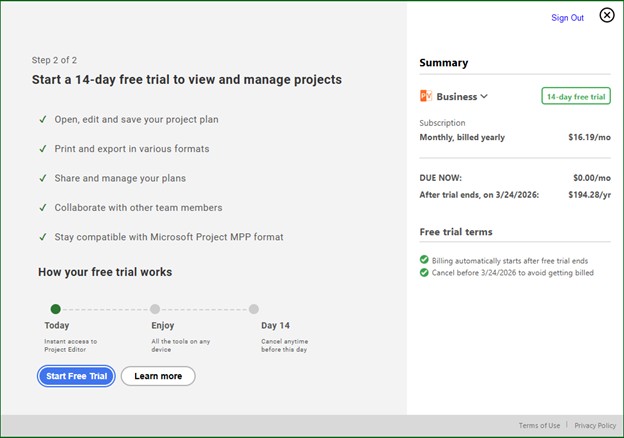
- After signing up, a dialog displaying the 14-day trial information will appear.
- Make sure the Business option is selected in the Summary section, then click Start Free Trial.
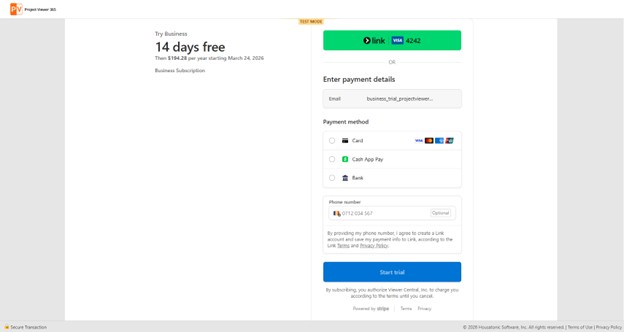
- You will be redirected to a browser page where you must enter the required billing information. Add a valid credit card number or choose Google Pay or Apple Pay, then click Start Trial to activate your 14-day Business trial.
- Return to the Project Viewer 365 for Microsoft Store application and enjoy using the Business trial.
How can I cancel my Business trial for Project Viewer 365 from Microsoft Store?
To cancel the Business trial for Project Viewer 365 from Microsoft Store, please go in our Online Portal and in Account page click on the Manage Plan button. In the dialog that appears, click on Cancel your free trial button. Select a reason or type one in then click on the Continue to cancel button for the next 3 steps. Click on Confirm Cancelation button. You will receive a confirmation email of cancelling the Auto-Renewal.
You can also cancel Auto-Renewal for the trial period from the Billing page, in the “Subscription Information” section click the Manage Plan button. In the dialog that appears, click on Cancel your free trial button. Select a reason or type one in then click on the Continue to cancel button for the next 3 steps. Click on Confirm Cancelation button. You will receive a confirmation email of cancelling the Auto-Renewal.
Please note that if you don’t cancel your trial before it expires you will be automatically charged for the number of subscriptions you assigned in the trial period. The subscription period will automatically renew unless you turn it off no later than 48 hours before the end of the current period. To cancel automatic renewal or manage your subscriptions, read the Cancel Subscription online help article.
Can I remove my credit card after starting a trial?
To remove your payment method, please go Project Plan 365 Portal - “Billing” tab and in the Payment Details section click the “Remove Payment Method” button. Your credit card will be removed instantly.
Note: In order to remove the credit card payment you need to first cancel the trial. You will be asked to first cancel it or keep the payment method. To cancel the trial, click on Manage Plan button then follow the cancellation process.
Is my trial canceled if I stop auto-renewal?
If you decide to cancel the so you won’t be automatically charged at the end of your 14-day free trial, your account will become inactive and you won’t be charged for anything. To continue using the app features, please place an order from our Purchase page.
What happens if I create an account for Project Viewer 365 but don't start a trial?
If you create an account for Project Viewer 365 but don't start a trial, your account will be inactive. In order to use the application, you need to start a Standard or Business Trial.
Note: If you do not start a trial after signing up, you will receive an email reminder from us to activate your account. Simply click on the Activate Account button from the email, select the desired payment method and click the Start Trial button.
Will I be able to use the Project Viewer 365 from Microsoft Store application after the trial expires?
After the trial expires, you cannot use the application without an active Standard or Business Subscription. To continue using the app features, please place an order from our Purchase page.
Step by step on how to start a 14 days Business Trial Subscription for Project Viewer 365 from Microsoft Store:
- Download and install our latest Project Viewer 365 application from Microsoft Store.
- Open the application.
- When the application starts, a dialog will appear asking you to Sign In or Create an Account.

- Click Create Account, then select the Business subscription option from the Summary section. Enter your email address and password, or choose one of the available third-party sign-up options, and click Continue.

- After signing up, a dialog displaying the 14-day trial information will appear.
- Make sure the Business option is selected in the Summary section, then click Start Free Trial.

- You will be redirected to a browser page where you must enter the required billing information. Add a valid credit card number or choose Google Pay or Apple Pay, then click Start Trial to activate your 14-day Business trial.

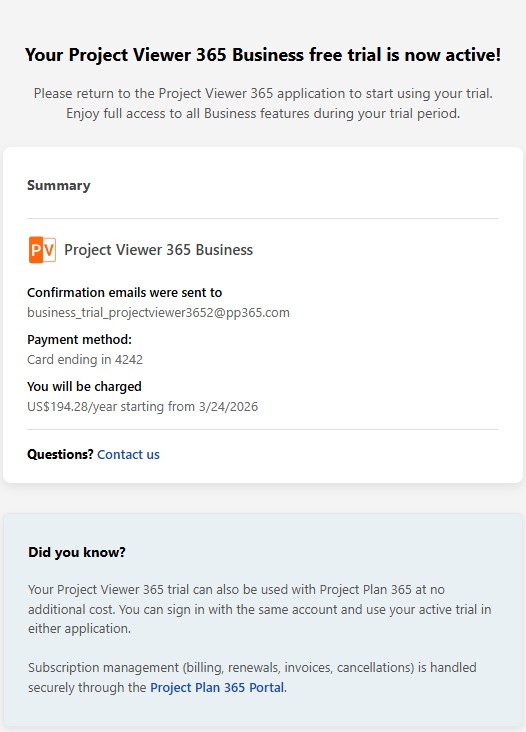
- You will be redirected to the Thank You page, where the details of your Business trial activation will be displayed.

- Return to the Project Viewer 365 for Microsoft Store application and enjoy using the Business trial.